 HOT
HOTPortrait to Landscape Converter
Turn vertical photos into wide, no-crop images. PixMira AI expands both sides, keeps the subject intact, and fits thumbnails, banners, slides, and covers.
Upload Image
Click to upload an image
PNG, JPG, JPEG, or WEBP (max 10MB)
Prompt
Aspect Ratio
Your generated images will appear here
More Magic Tools
More AI Image Tools for Your Next Edit
Try another PixMira AI Magic Tool when your image needs cleanup, enhancement, style changes, or a different creative direction.
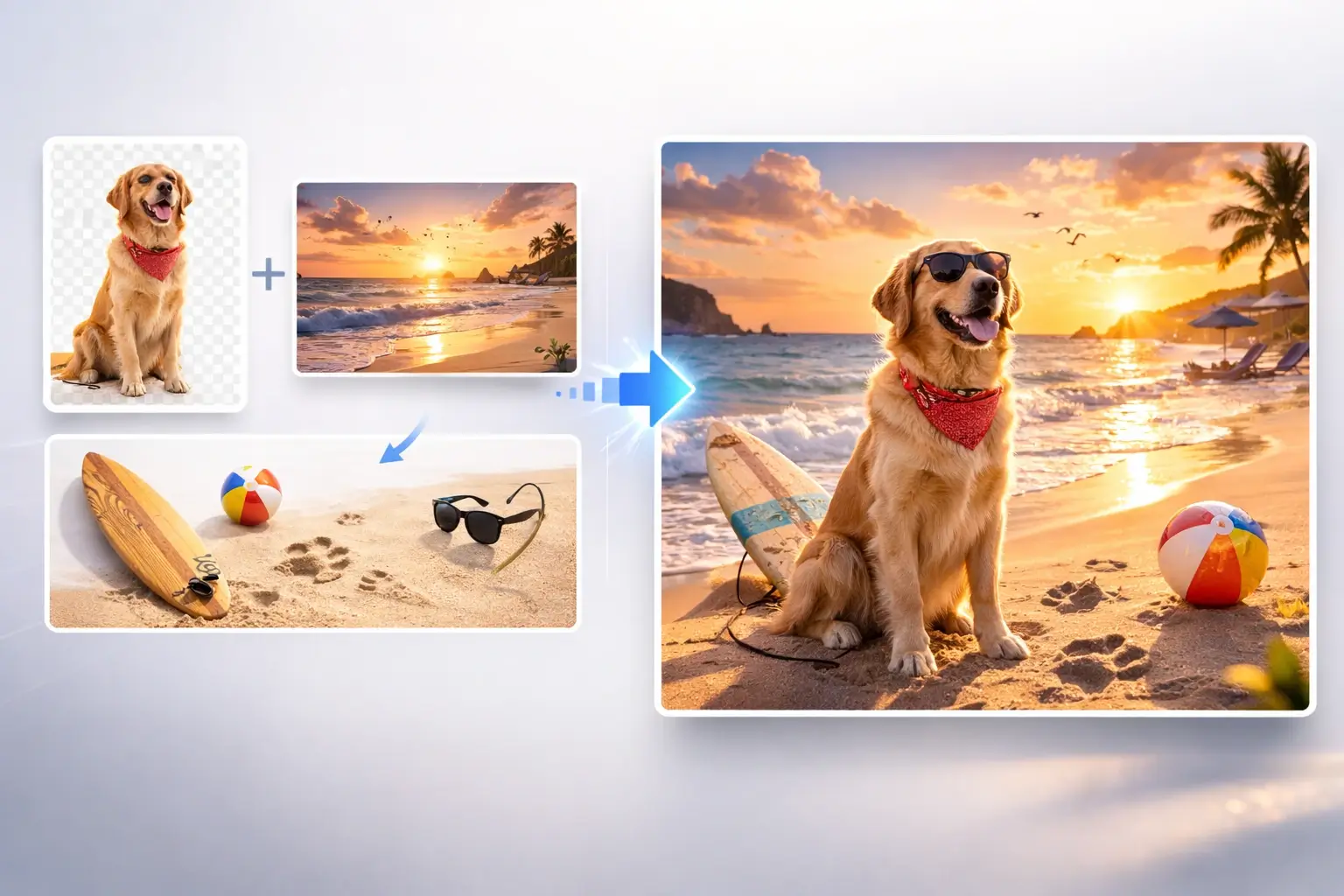
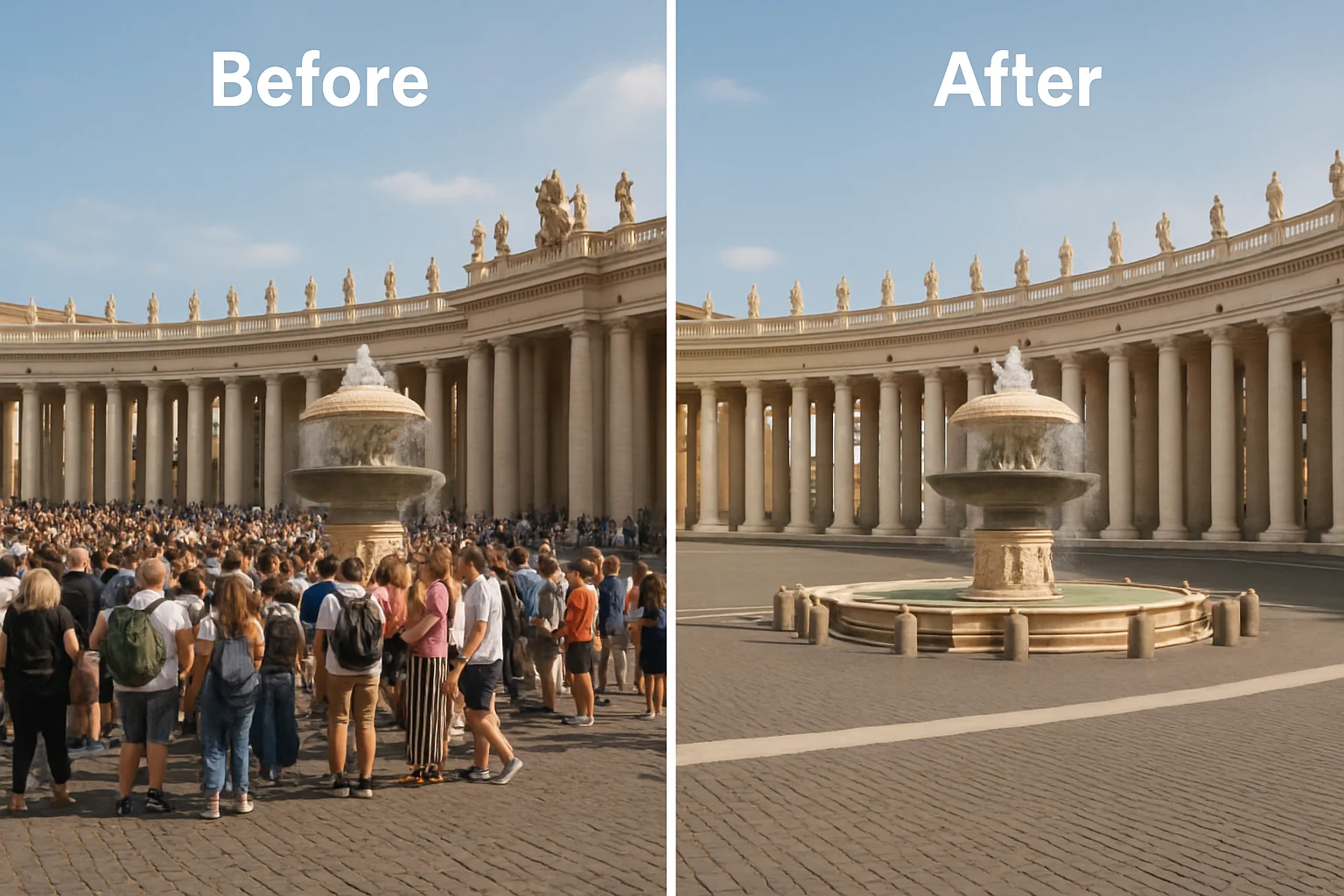
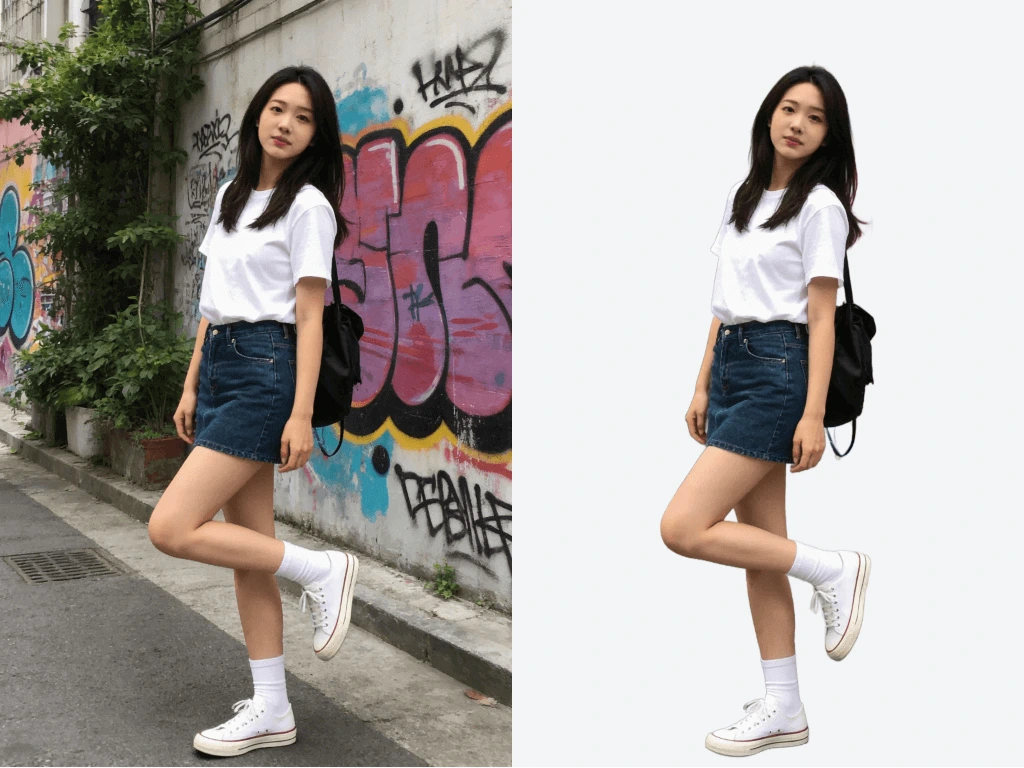
Core Features
AI Portrait to Landscape Converter for No-Crop Wide Images
PixMira uses AI background extension to turn portrait images into natural horizontal layouts. It preserves people, products, pets, and key details while the canvas expands into a wider composition.
Portrait to Landscape Converter Without Cropping
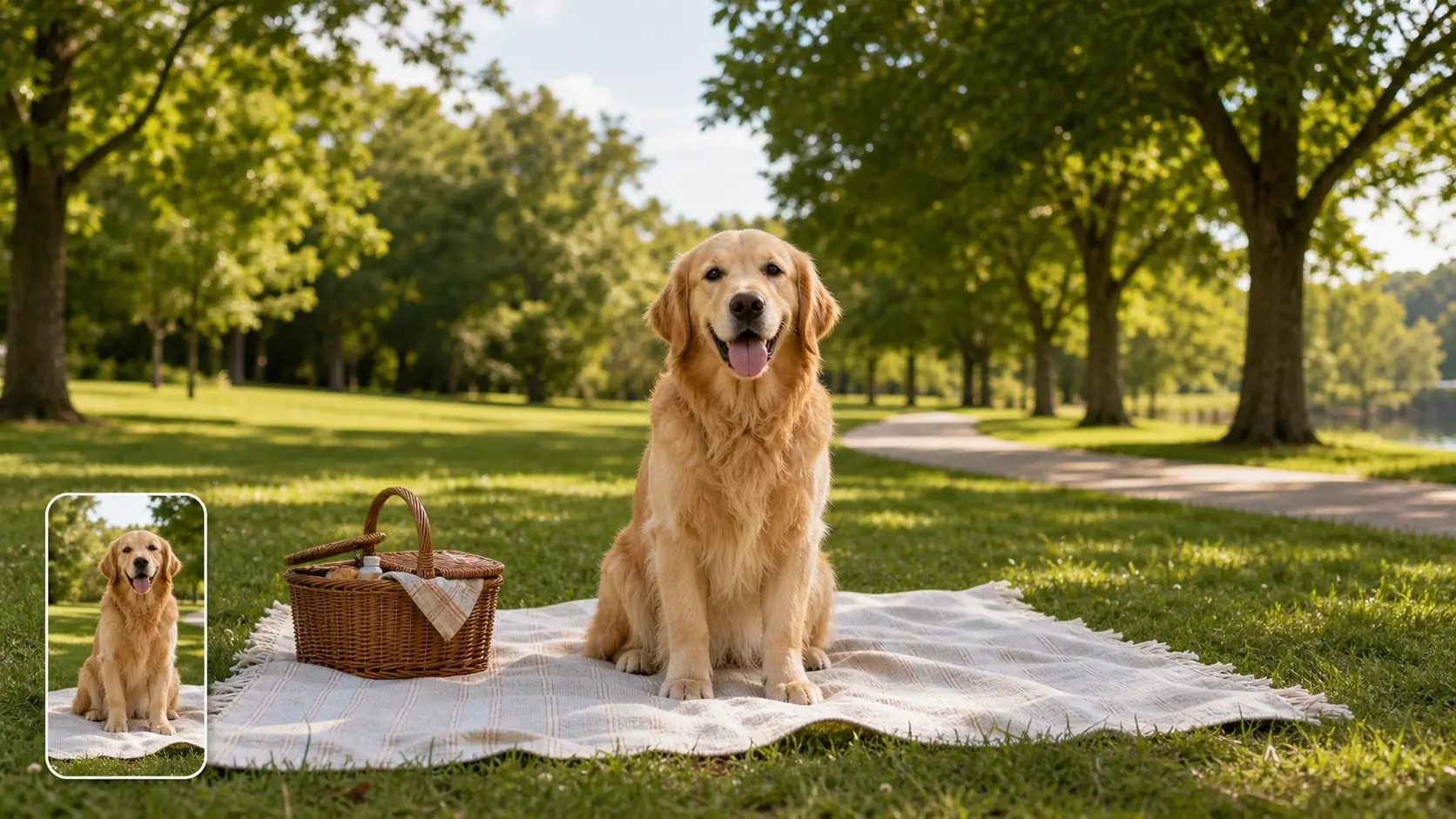
Turn a vertical image into a horizontal layout while keeping the person, product, pet, or main subject visible. PixMira expands the canvas outward instead of cropping the photo to fit a wide frame.
AI Background Extension That Matches the Scene
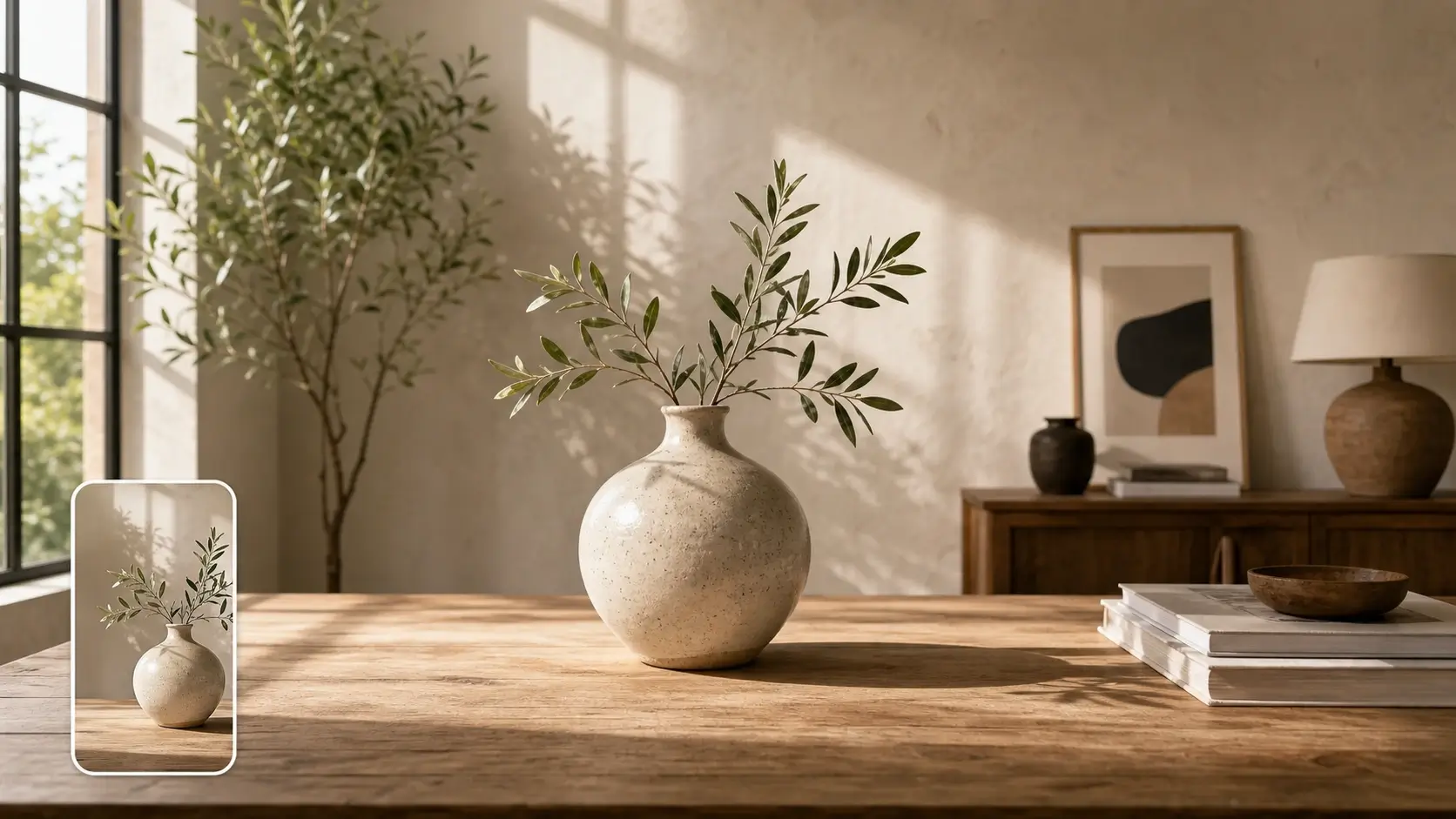
PixMira analyzes the photo edges, colors, light direction, texture, and perspective, then generates new side areas that fit the original image. Use it for rooms, beaches, streets, studio shots, skies, and clean product backgrounds.
Create 16:9, 4:3, 3:2, 2:1, and Banner Layouts
Choose a landscape ratio based on the final use. Create 16:9 video thumbnails, 4:3 presentation visuals, 3:2 photo layouts, 2:1 social covers, or extra-wide website hero images from the same portrait photo.
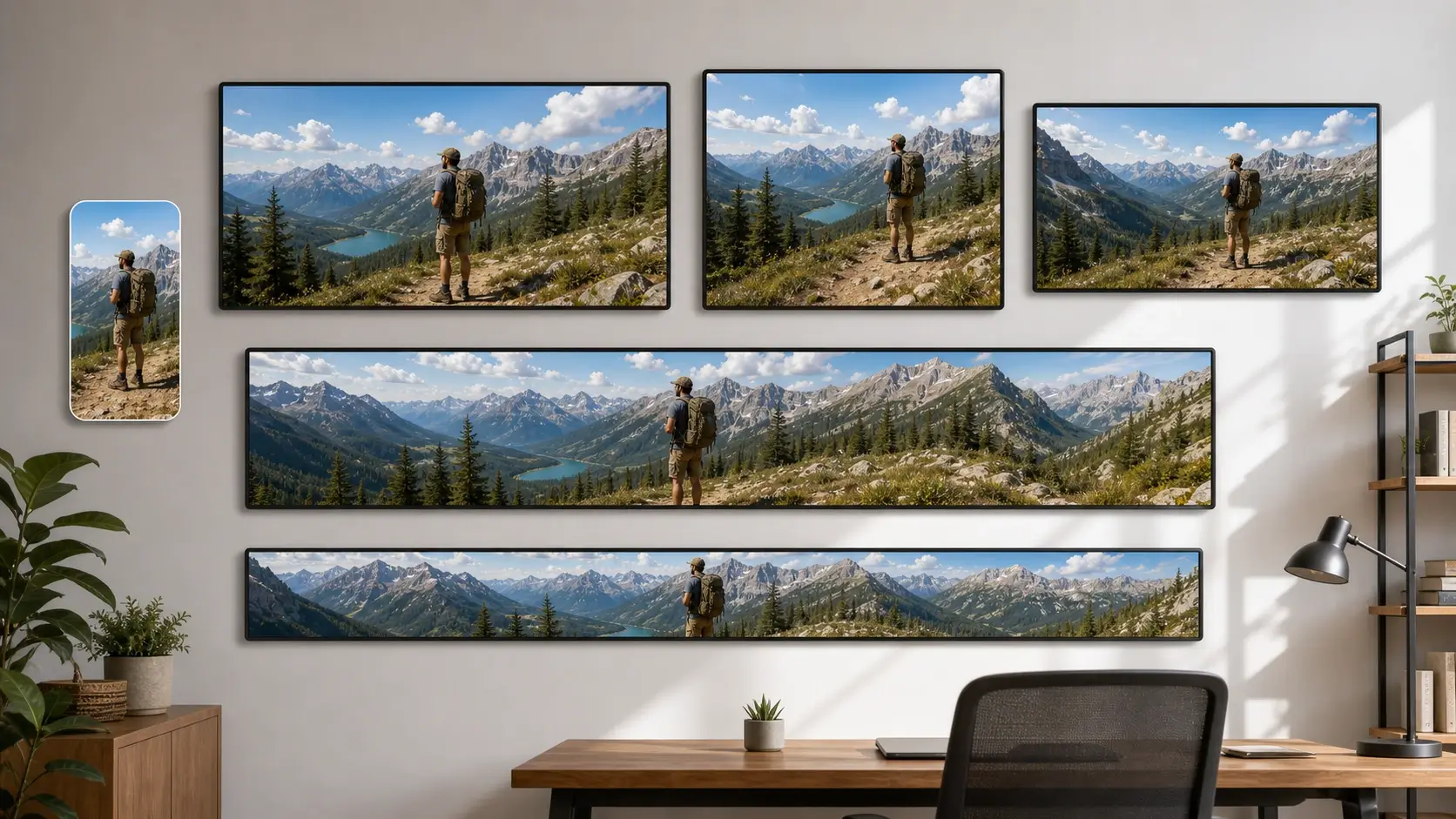
Prompt-Guided Landscape Expansion
Add a short prompt when you need more control over the wider scene. Ask for clean studio space, extended beach scenery, a simple office wall, soft sky, product room, or empty space for headline text.
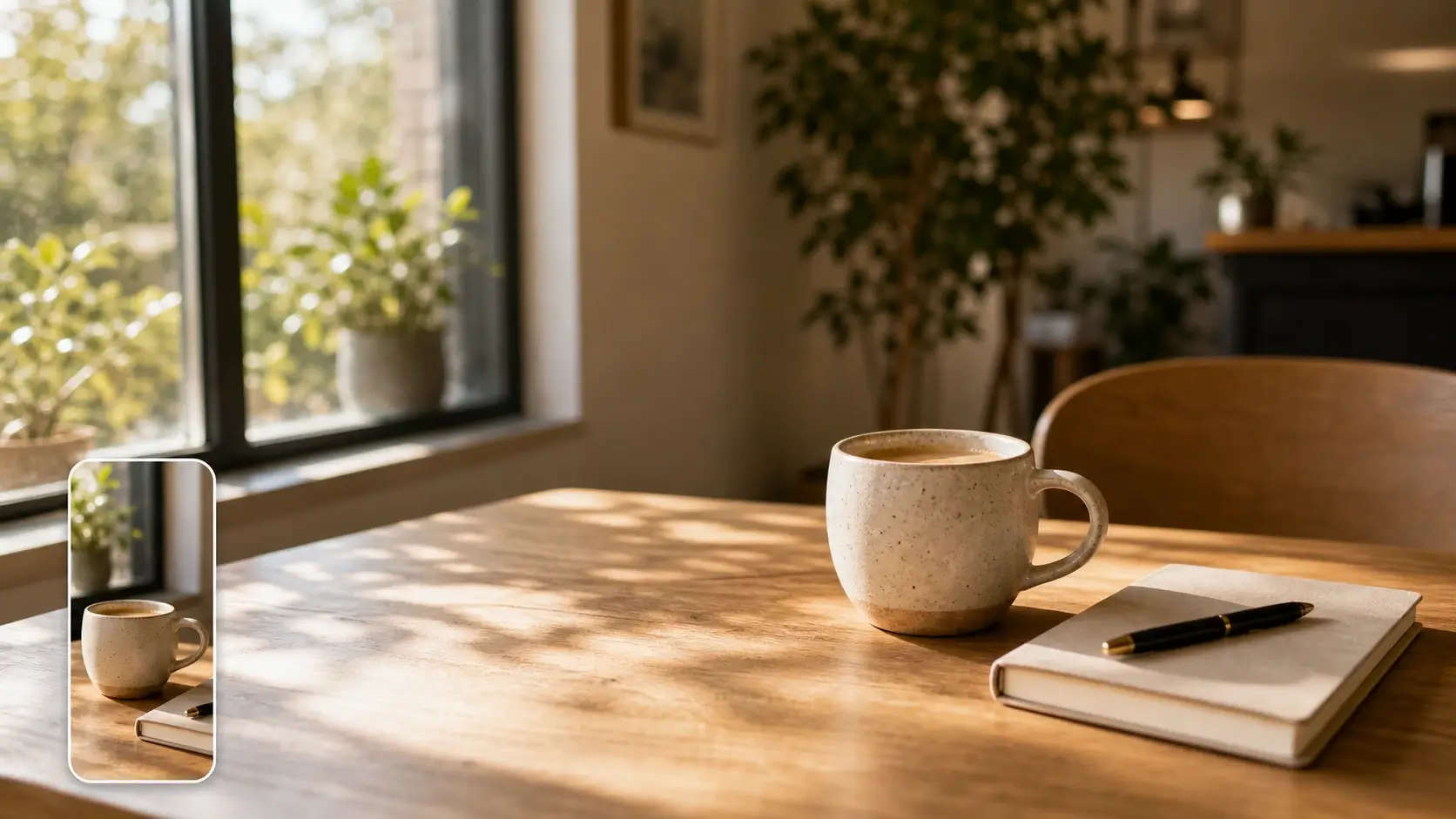
Keep Faces, Products, Pets, and Key Details Consistent
The Portrait to Landscape Converter expands the surroundings instead of redesigning the original subject. PixMira keeps the face, pose, clothing, product shape, logo area, pet, or main object consistent while building a wider composition.
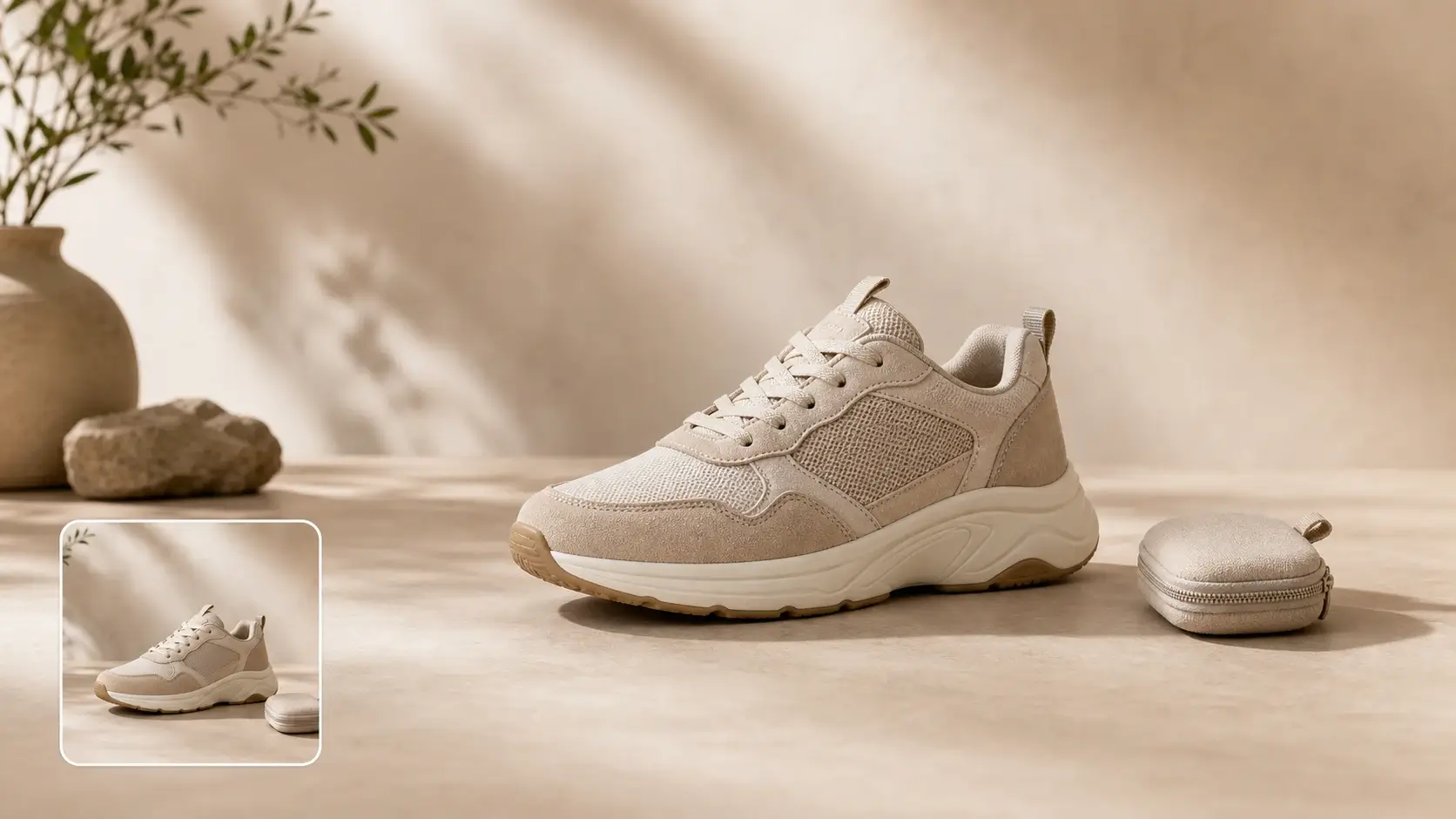
Browser-Based Workflow for Wide Visuals
No Photoshop canvas work, manual cloning, or complex layer setup is required. Generate a wide version in the browser, then use it in thumbnails, banners, slides, ads, social covers, and landing page sections.
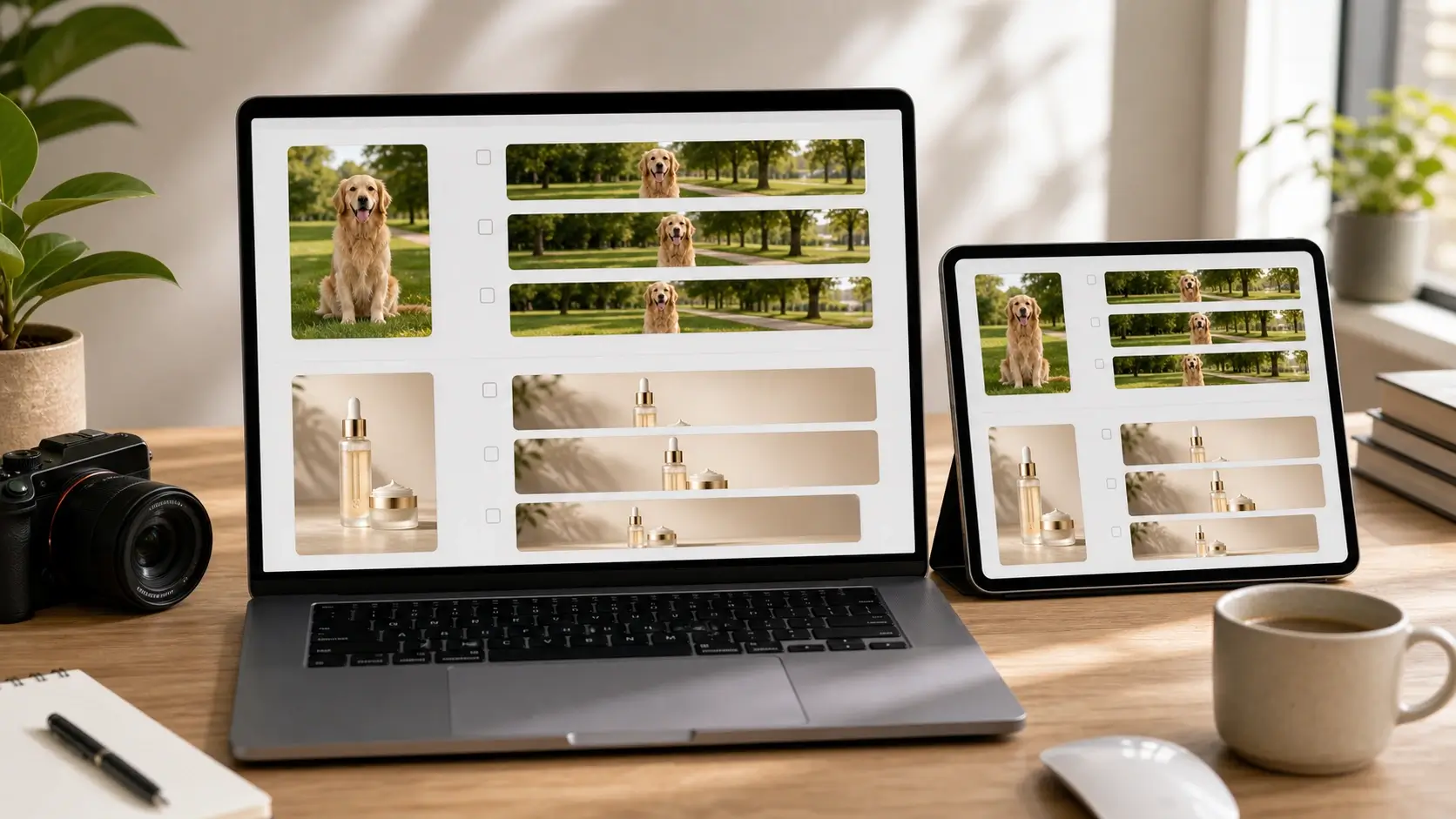
Landscape Ratios
Choose the Right Landscape Ratio
Select a wide aspect ratio based on where the image will be used. Create 16:9 thumbnails, presentation-ready 4:3 visuals, social covers, website banners, and custom landscape layouts without starting from scratch.
16:9
YouTube Thumbnails and Video Covers
Best for YouTube thumbnails, video preview cards, website sections, and horizontal social visuals that need room for titles and branding.
4:3
Slides, Reports, and Classroom Materials
A practical landscape ratio for presentations, documents, reports, learning materials, and general-purpose visual layouts.
3:2
Photography and Blog Images
Useful for photo-style compositions, blog covers, article images, print-like layouts, and cleaner wide image framing.
2:1
Social Covers and Ad Banners
A wide format for profile covers, campaign headers, ad creatives, announcement graphics, and layouts that need extra side space.
21:9
Website Hero and Cinematic Banners
Use this extra-wide ratio for landing page hero images, cinematic banners, product launch visuals, and immersive web sections.
Custom
Exact Layouts for Design Projects
Choose a custom landscape size when you need a precise output for ecommerce, ads, thumbnails, covers, or brand templates.
Step-by-Step Guide
How to Use the Portrait to Landscape Converter
Choose a landscape ratio, guide the background with an optional prompt, and generate a wide image that keeps the subject visible while extending the scene.
1
Upload a Vertical Photo
Choose the portrait image you want to make wider. A clear subject and visible background context give PixMira the scene details needed for clean landscape expansion.
2
Choose a Landscape Ratio
Select a wide layout such as 16:9 for thumbnails, 4:3 for slides, 2:1 for social covers, or a custom ratio for ads, banners, and design projects.
3
Add a Prompt and Generate
Use the optional prompt to guide the extended background, layout space, or scene mood. PixMira expands the canvas while keeping the original subject intact.
4
Download or Keep Editing
Preview the landscape result, download it, or continue editing in PixMira. Use the wide image for YouTube thumbnails, website banners, slides, ads, and social covers.
Use Cases
Use Portrait Photos in Wide Layouts
Use PixMira when a portrait photo needs to fit a horizontal design without cutting off the person, product, pet, or important scene details.
YouTube Thumbnails and Video Covers
Convert a vertical phone photo into a 16:9 thumbnail or video cover. The wider canvas gives you space for title text, logos, captions, and subject-safe cropping.
Website Banners and Landing Page Heroes
Turn portrait photos into wide website visuals that fill hero sections, blog covers, and landing page blocks without cutting off the main subject.
Social Media Covers
Create horizontal images for social headers, profile covers, campaign posts, and creator announcements. Use the expanded background as clean space for copy and branding.
Product and Marketplace Banners
Expand vertical product shots into horizontal banners while keeping the item, label, packaging, and key details visible. Useful for ecommerce visuals and promotional layouts.
Presentation Slides and Reports
Make portrait photos fit slide decks, reports, classroom materials, and business presentations. A landscape result reduces awkward blank areas and creates a cleaner layout.
Travel, Pet, and Portrait Photo Layouts
Give personal photos more room for storytelling. Extend beaches, streets, parks, rooms, studios, and simple backgrounds around people, pets, and travel subjects.
Workflow Examples
Portrait to Landscape Workflows
See practical ways to turn vertical photos into wide images for thumbnails, banners, slides, product pages, and social media layouts.
YT
YouTube Thumbnail Workflow
16:9 video cover
Start with a vertical travel or creator portrait, expand it to 16:9, and leave clean space for headline text, logos, and video branding.
PB
Product Banner Workflow
Marketplace and campaign banner
Use a portrait product shot, keep the item and label visible, then expand the background to create a horizontal layout for promotions and storefront visuals.
WH
Website Hero Workflow
Landing page visual
Turn a portrait image into a wide hero section by extending the scene left and right, then use the empty side area for copy, calls to action, and brand elements.
PW
Presentation Workflow
Slide and report image
Convert a vertical portrait into a 4:3 or 16:9 slide-ready image so the photo fills the layout without awkward blank space or heavy cropping.
SC
Social Cover Workflow
Header and profile cover
Use AI expansion to turn vertical lifestyle photos into horizontal social covers, leaving safe areas for profile overlays, stickers, and campaign text.
CE
Creative Edit Workflow
AI outpainting draft
Generate a wide base image first, then continue editing in PixMira with background changes, object cleanup, upscaling, or more prompt-based image edits.
Help & Support
Portrait to Landscape Converter FAQs
Learn how AI portrait-to-landscape conversion works, when to use 16:9 or banner ratios, how prompts guide the background, and how to create cleaner wide-image results.
Generate a Wide Image