01
Upload or open an image
Start with a photo from your device, a generated result, or an existing creation opened with Edit with AI.
Box any part of a photo, write what it should become, and PixMira edits just that spot.
Or try a sample
A Visual AI Editor lets you guide image edits with both visual marks and text instructions. Instead of relying on a prompt to describe the whole photo, you can brush, box, or annotate the exact area you want to change and tell PixMira what should happen there.
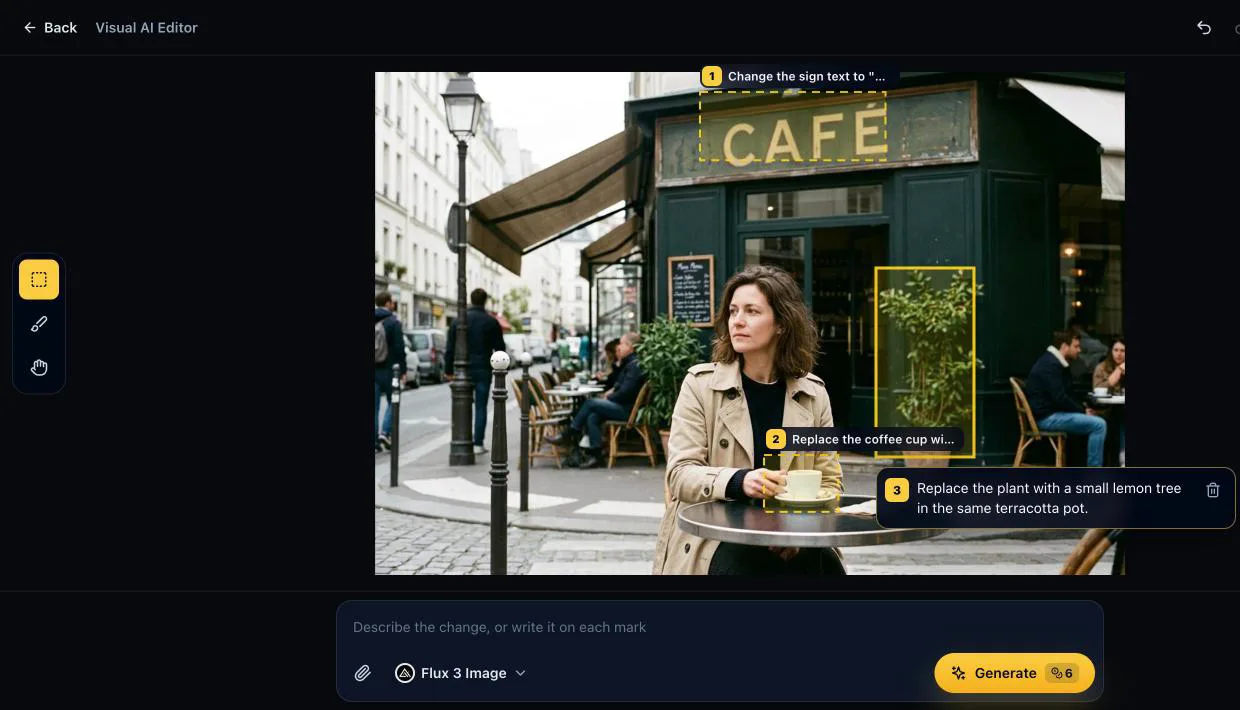
Mark the target area before writing your prompt. Use brush marks, boxes, or notes to show PixMira exactly which part of the image you want to edit.
Start with a photo from your device, a generated result, or an existing creation opened with Edit with AI.
Draw a box or brush over the object, detail, or area that needs editing, then type what it should become in the note next to the mark.
The result replaces the image on the canvas. Hold to compare with the previous version, switch versions in the strip, or click Try again to adjust your marks.
Draw a box on every part you want to change and give each box its own note. PixMira applies all of them in one go and leaves the rest of the photo as it was.
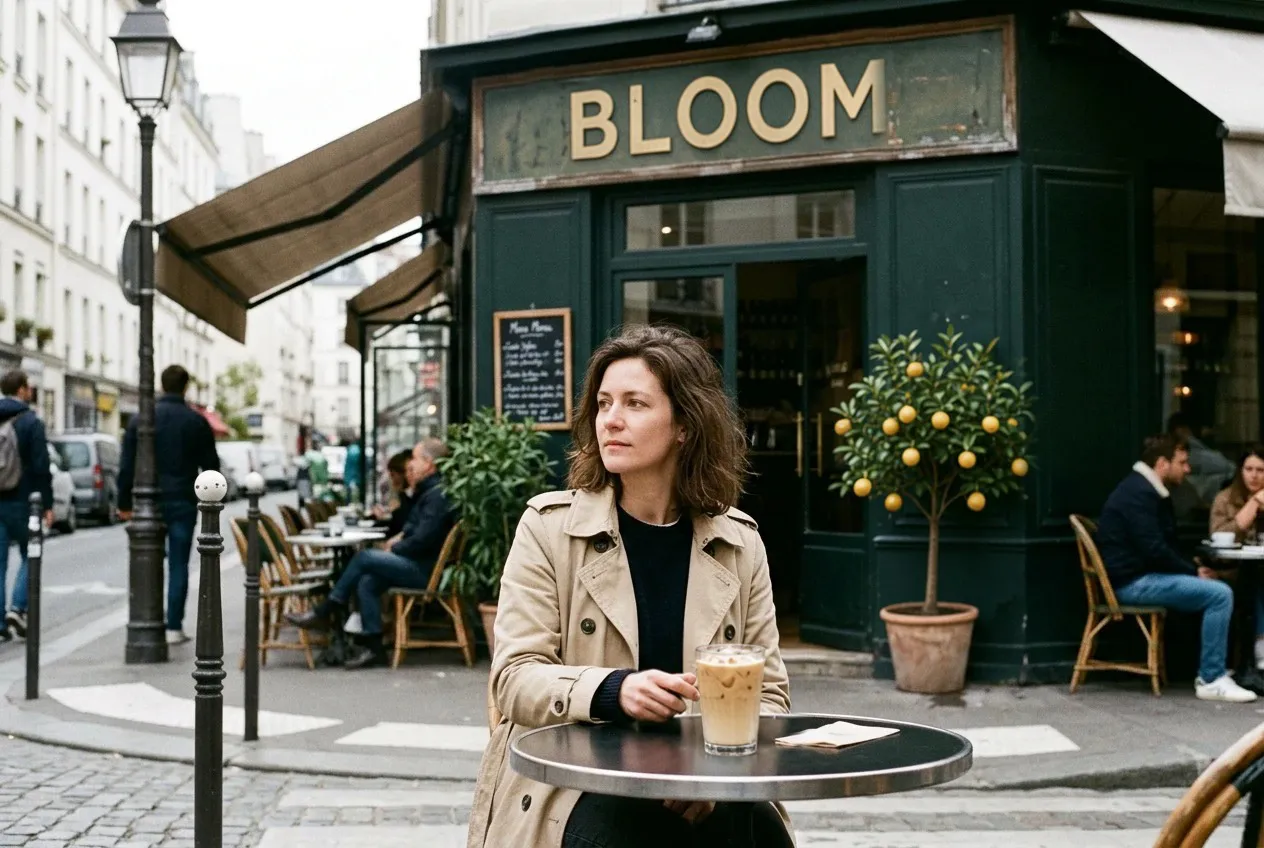
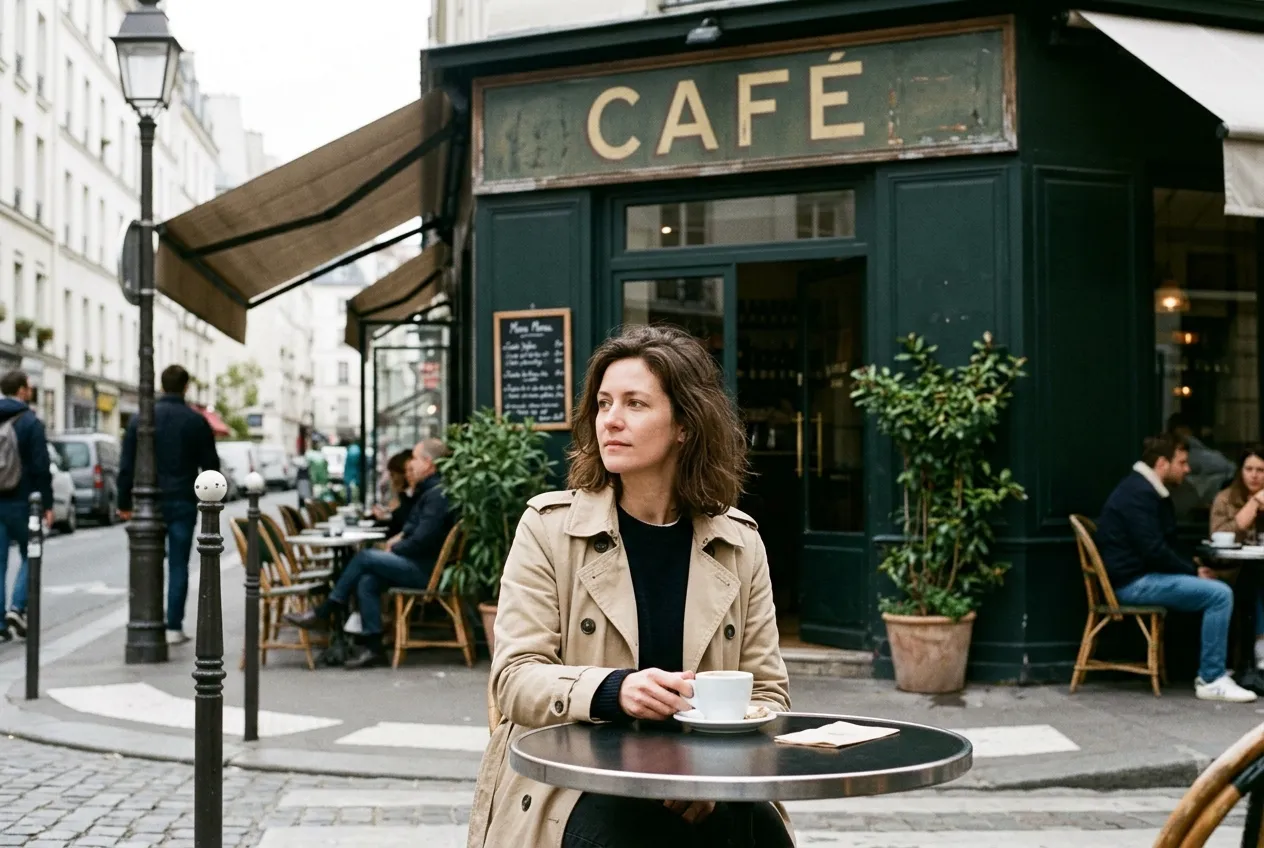
Use visual marks when you need PixMira to understand one specific part of an image instead of changing the whole photo.
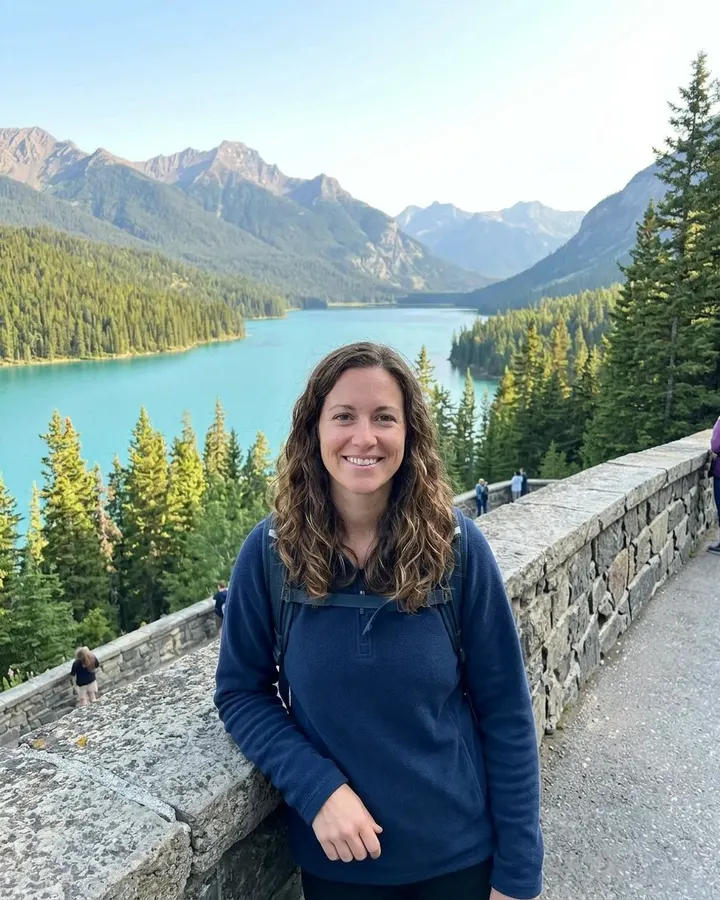
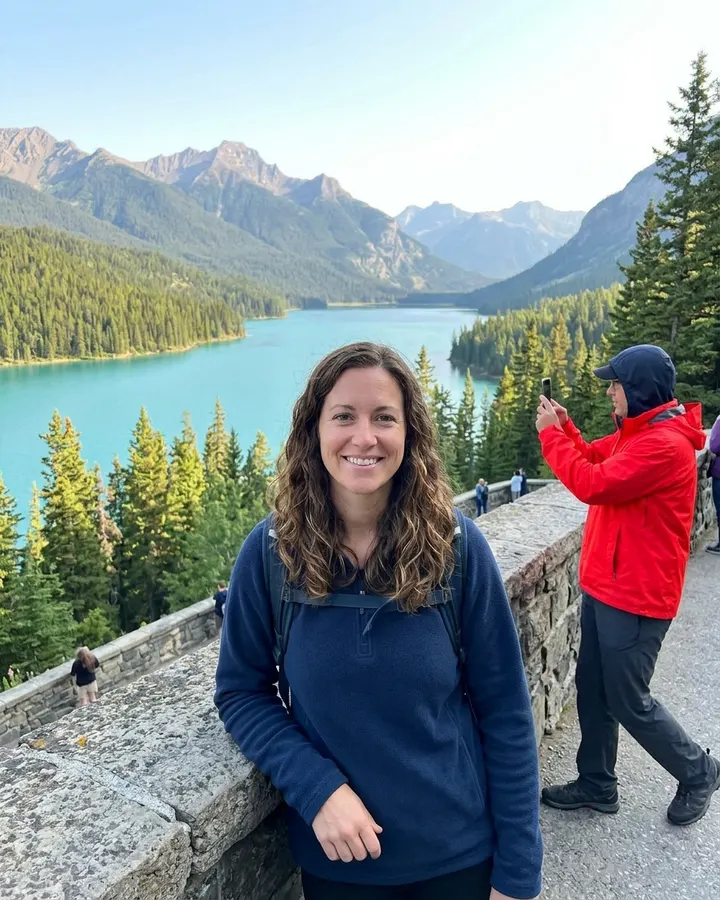 BeforeAfter
Mark an object, text, clutter, small defect, or distraction and ask PixMira to remove it naturally.
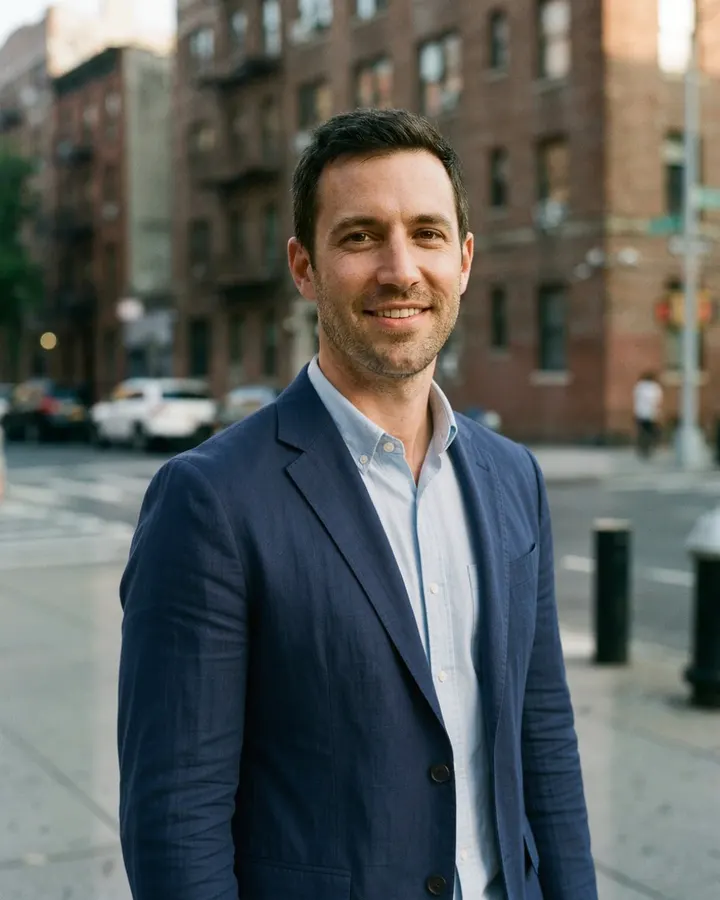
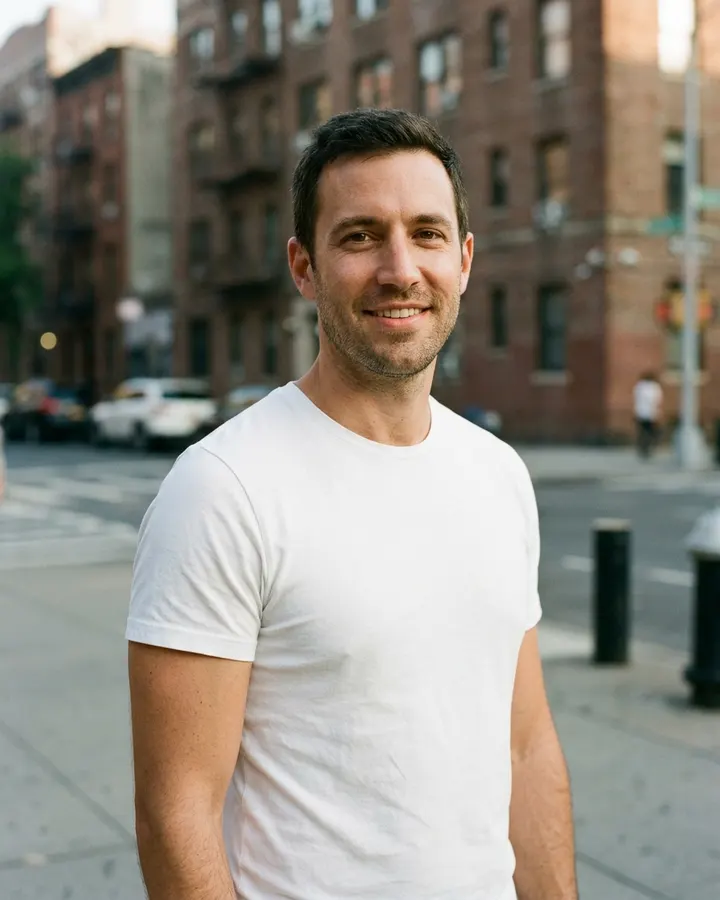 BeforeAfter
Select clothing, accessories, props, products, colors, or details and describe what they should become.
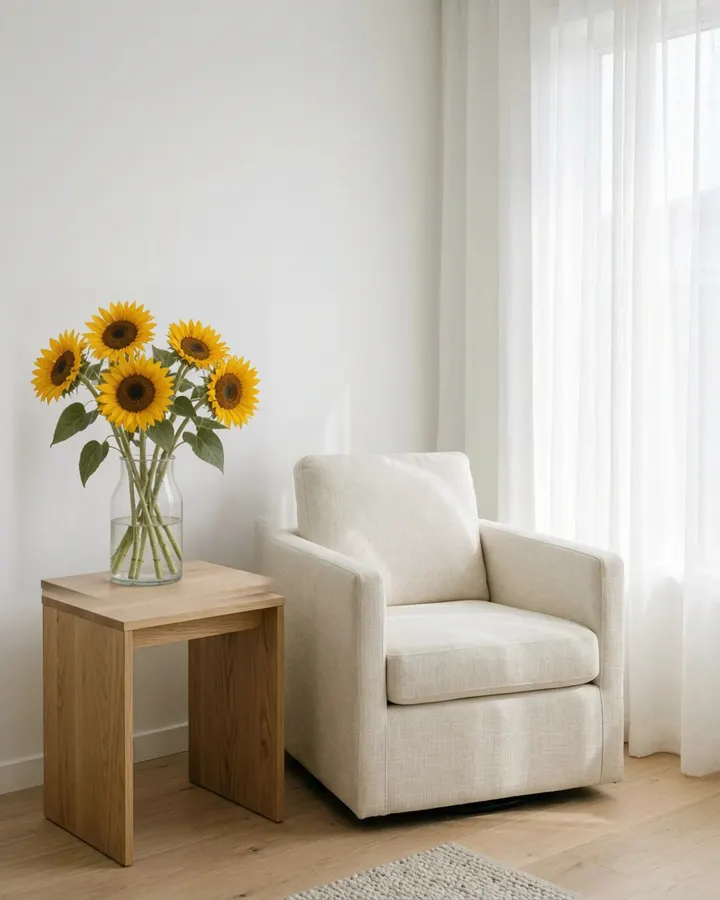
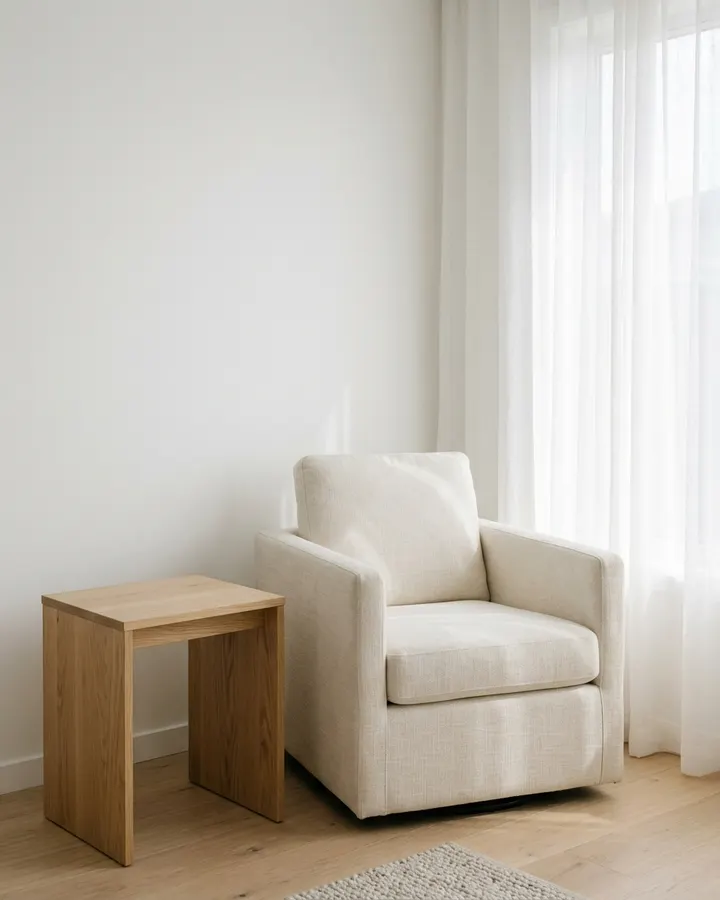 BeforeAfter
Mark where a new item should appear and describe the object, style, size, color, or material.
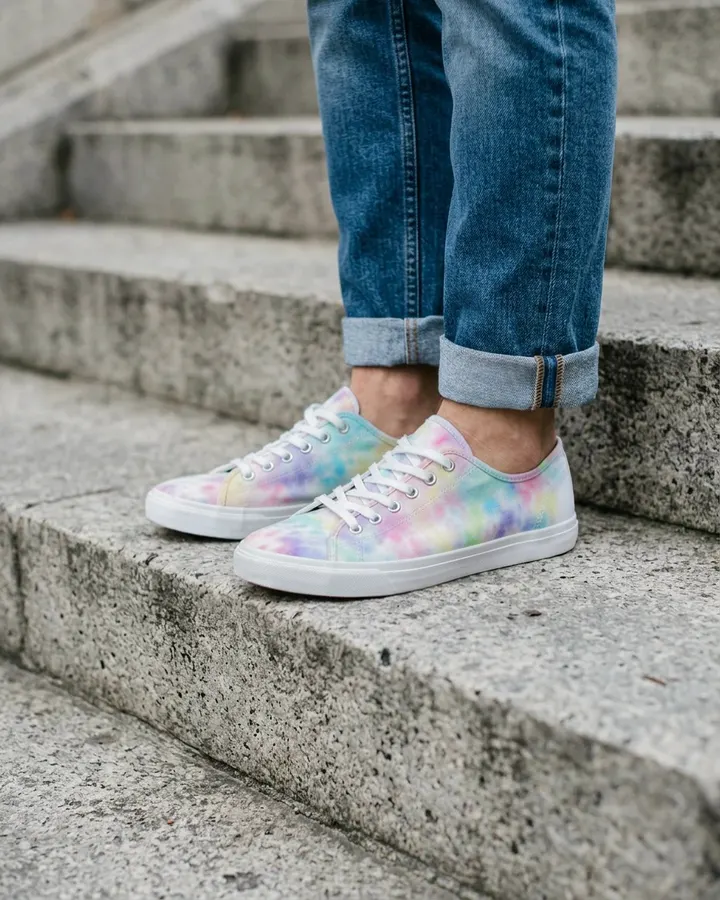
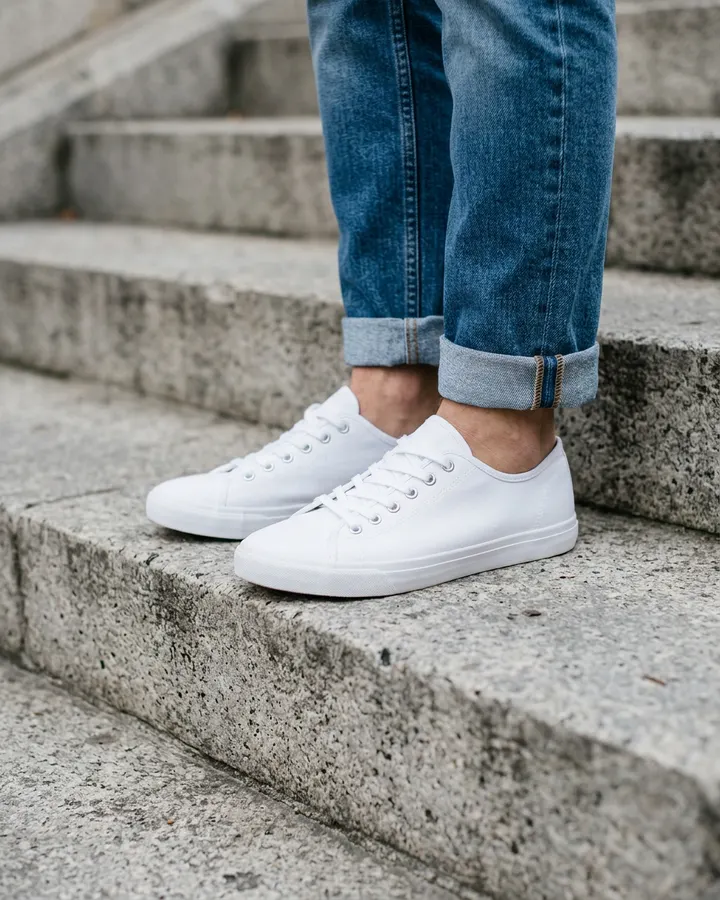 BeforeAfter
Change only the selected area while keeping the rest of the image close to the original.
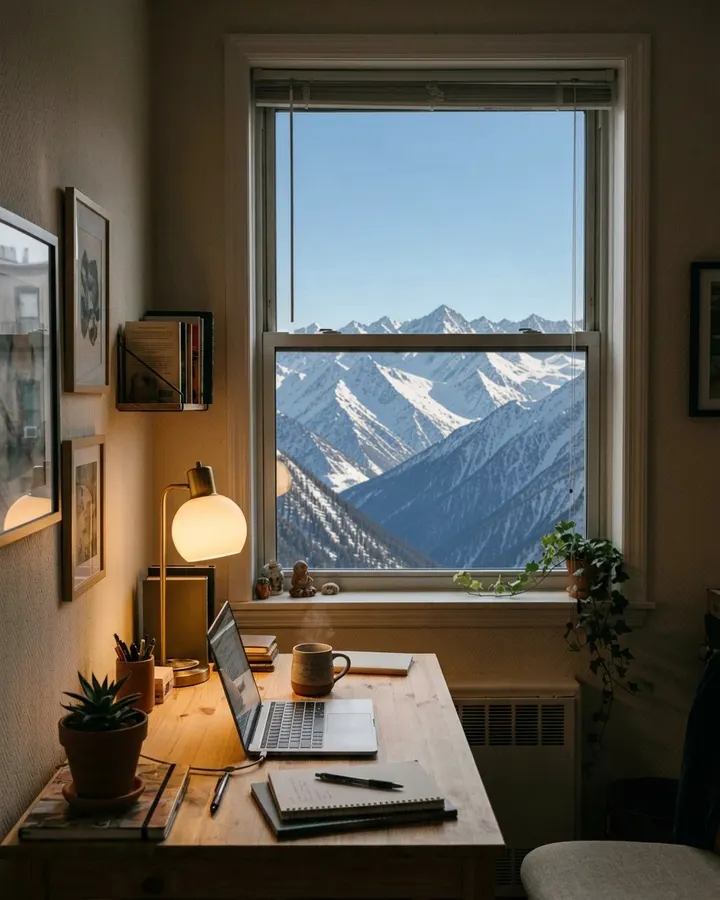
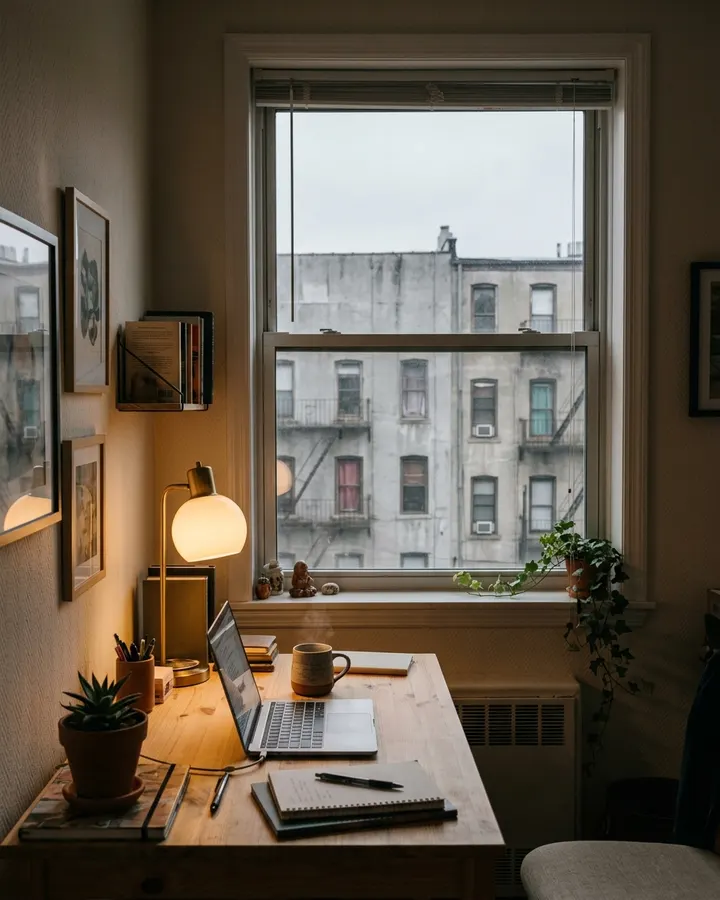 BeforeAfter
Select part of a background and ask PixMira to clean it, replace it, or make it fit the scene better.
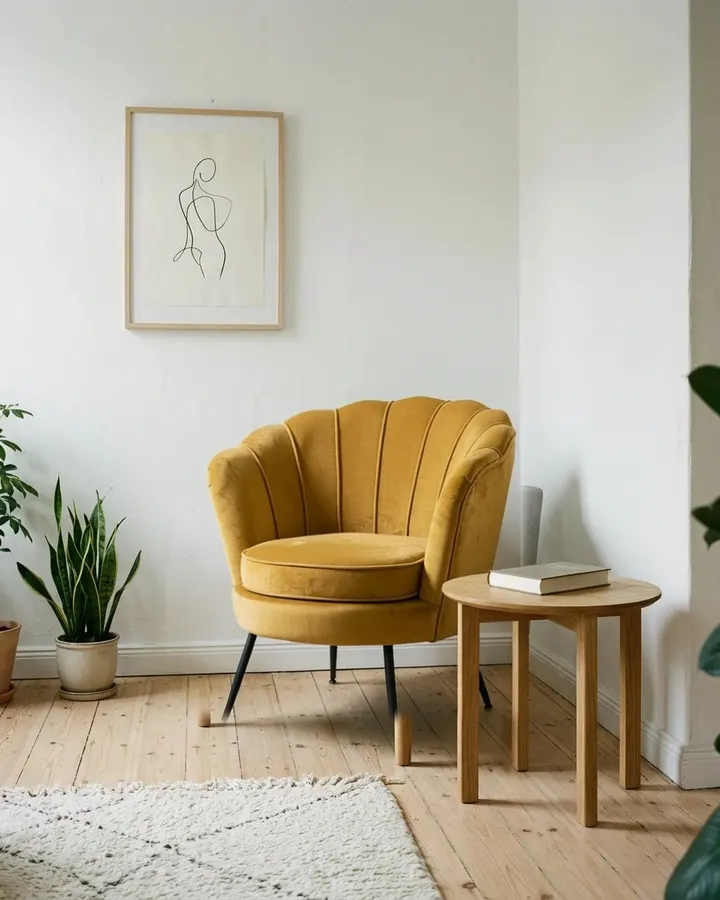
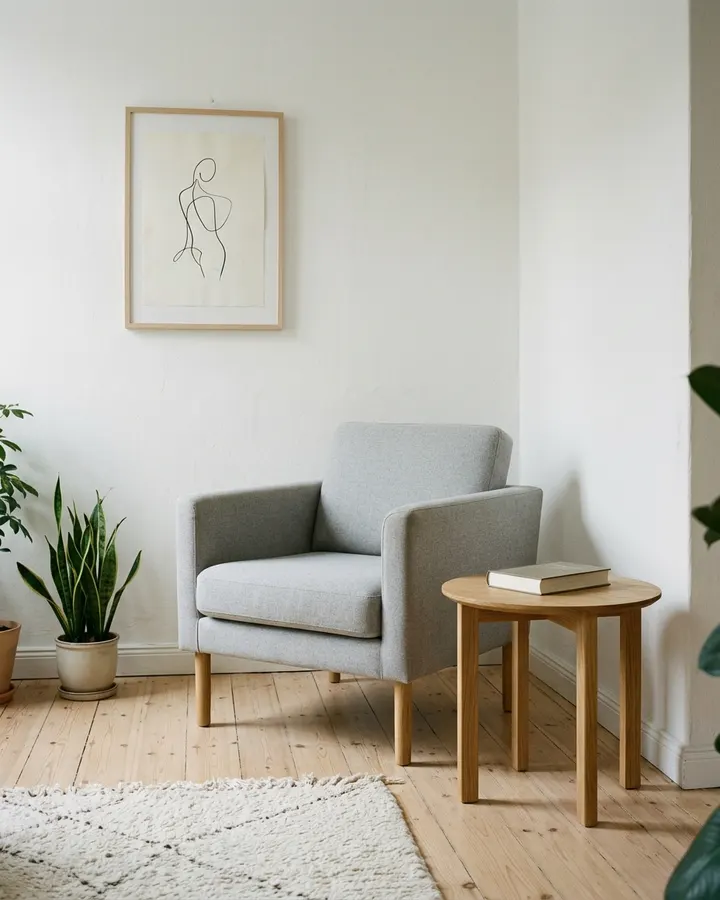 BeforeAfter
Add references when you want PixMira to match identity, style, pose, object appearance, material, color, lighting, or other visual details.
Short, specific instructions work best. Mention the marked area, the change you want, and anything important to keep unchanged.
Remove the object in the marked area and reconstruct the surrounding details naturally.
Replace the selected shirt with a black blazer while keeping the person and pose unchanged.
Remove the object inside the box and fill the background naturally.
Add a small gold necklace to the marked area and match the lighting.
Change the selected background area to a clean beach scene.
Restyle only the marked area in a soft cinematic look.
Answers about boxes, brush marks, notes on each mark, reference images, versions, and precise local AI image editing.
Use Visual AI Editor for marked local edits. For faster single-purpose edits, try a dedicated PixMira tool.
Use prompt-based photo editing when the whole image can be described in text.
Open toolRemove unwanted objects with a focused object removal workflow.
Open toolRemove backgrounds quickly when you only need a clean cutout.
Open toolChange outfits with a dedicated clothing-editing workflow.
Open tool