01Natural color
Realistic tones for people and scenes
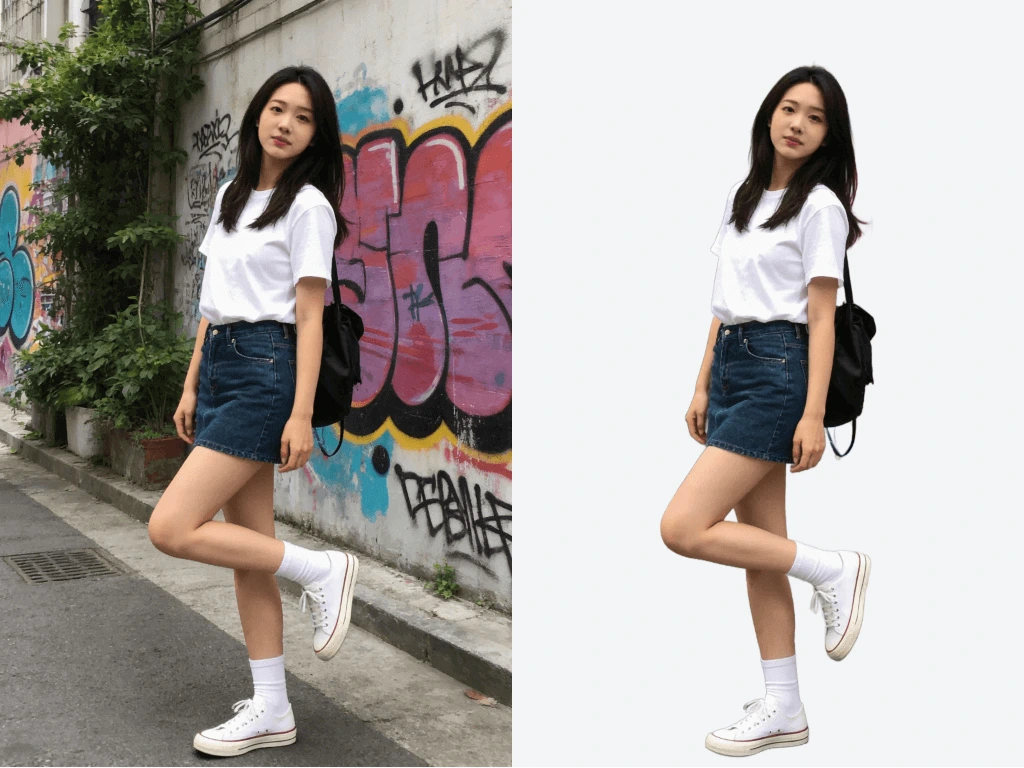
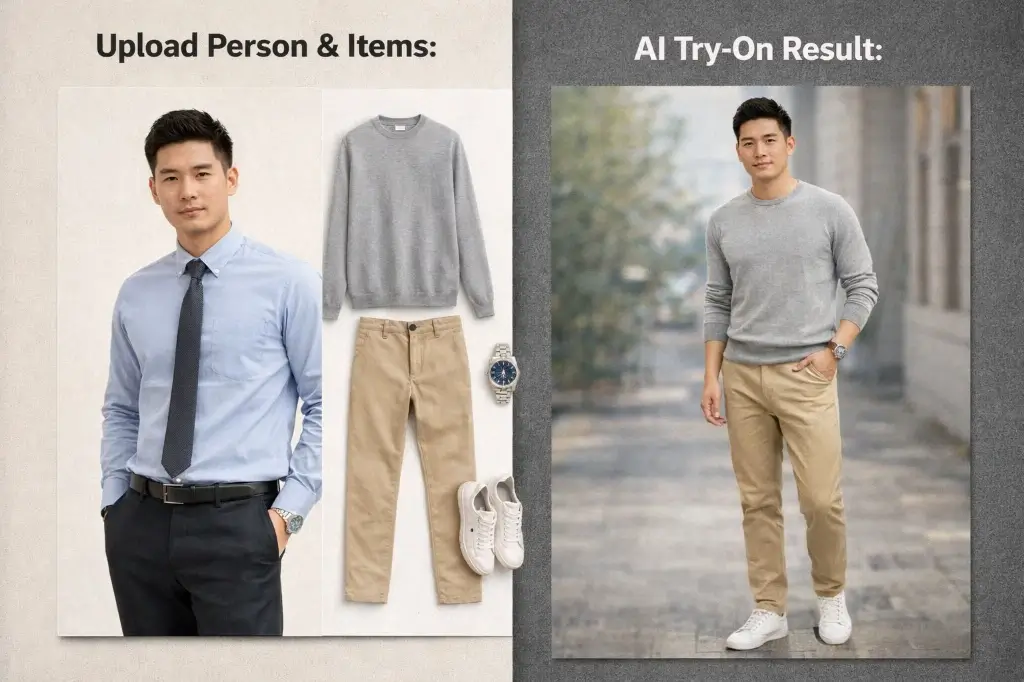
Add natural looking color to skin, hair, clothing, skies, plants, wood, buildings, and everyday objects so black and white photos feel vivid without looking painted.
Black and White Photo
Click to upload an image
PNG, JPG, JPEG, or WEBP (max 10MB)
Prompt
Aspect Ratio
Resolution
Quality
Your generated images will appear here
PixMira AI Photo Colorizer turns grayscale and black and white photos into color images by reading faces, clothing, objects, scenery, lighting, and tonal contrast. The goal is not only to add color, but to make an old photo easier to understand, share, and keep.
Use this AI photo colorizer for old family photos, vintage portraits, historical images, scanned albums, and creative photo restoration workflows. After colorization, continue with PixMira tools to upscale, retouch, remove distractions, or refine the final image.
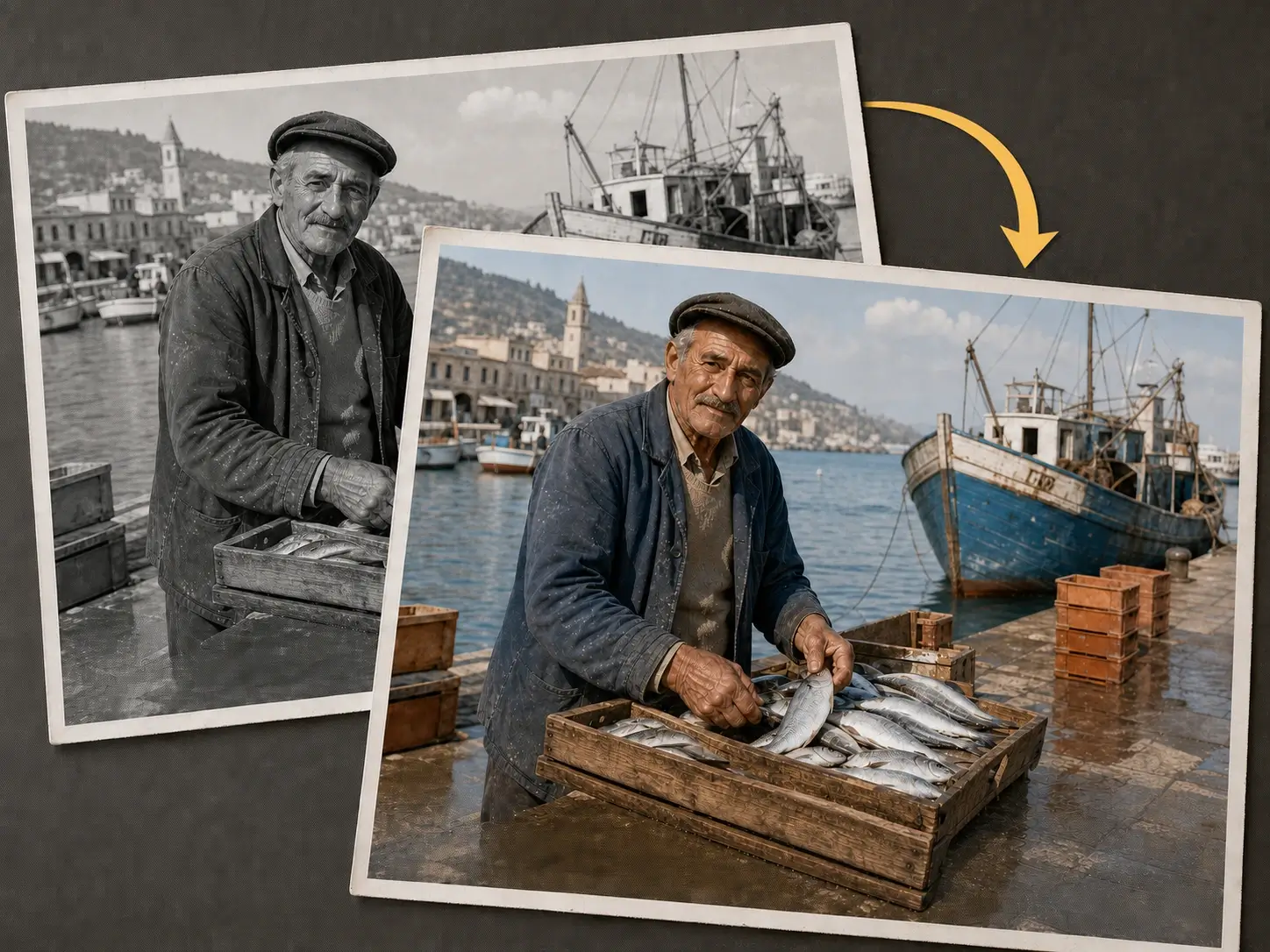
A strong AI Photo Colorizer should keep faces, expressions, clothing edges, background details, and the original atmosphere stable while adding believable color.
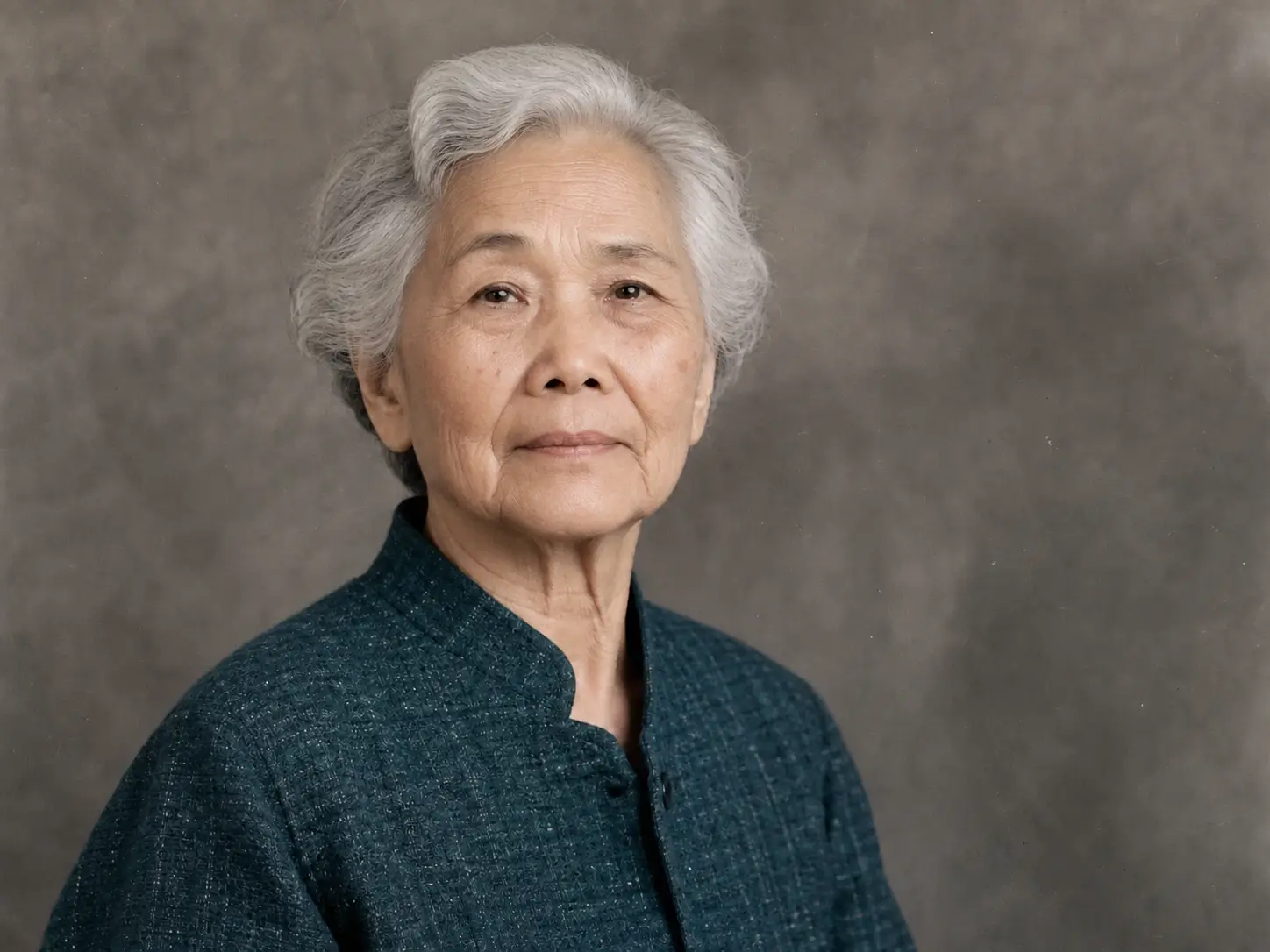
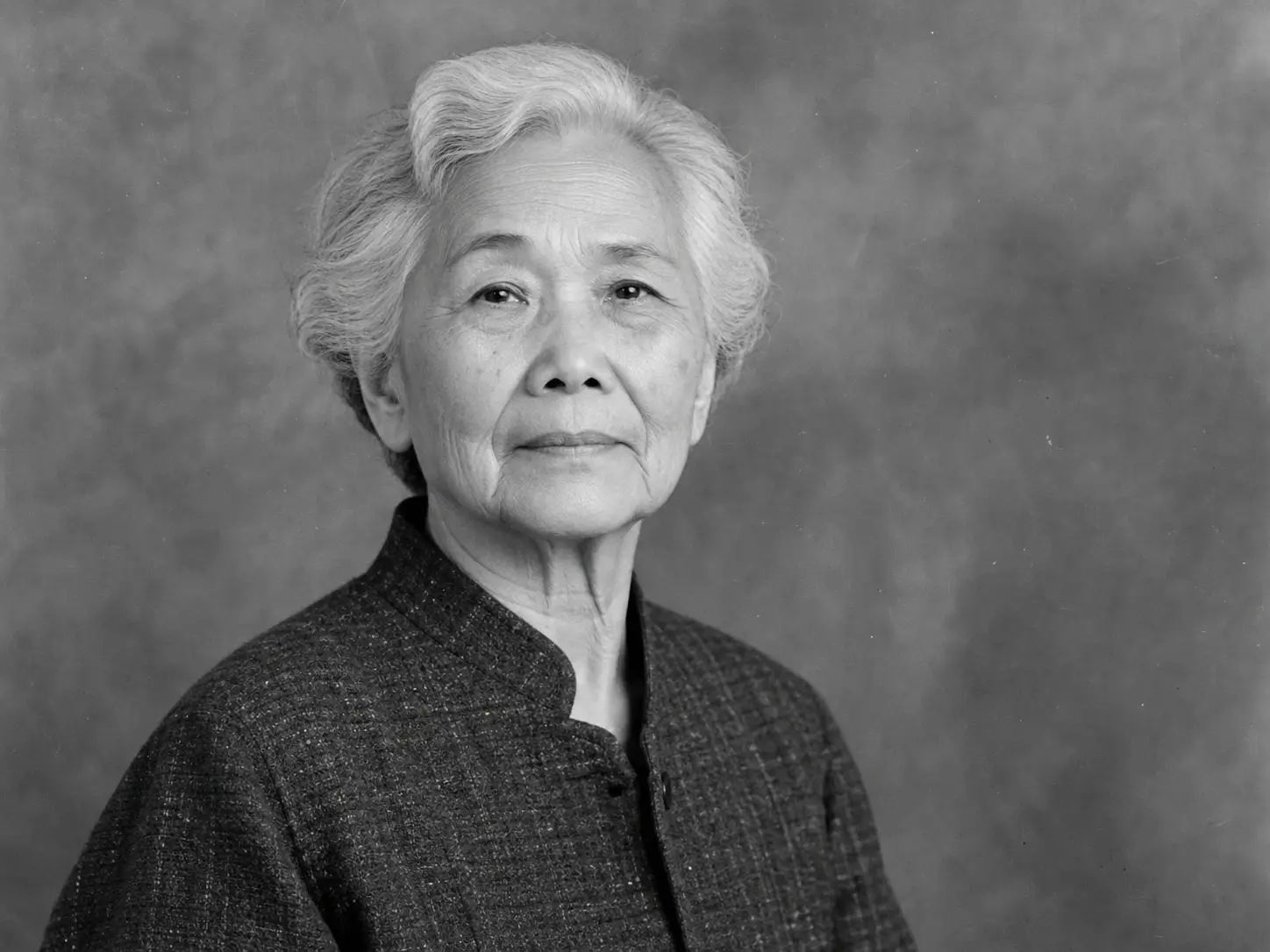
Compare skin tone, hair, eyes, lips, clothing, and facial edges while checking that the person remains recognizable.
Before and after preview for AI photo colorization
Get natural color, recognizable people, clearer old photo details, and an easy follow-up editing workflow for scans, portraits, albums, and historical images.
Add natural looking color to skin, hair, clothing, skies, plants, wood, buildings, and everyday objects so black and white photos feel vivid without looking painted.
Preserve the person, age, expression, pose, and original mood of the photo while adding color that supports the memory instead of rewriting it.
Colorization can make faded scans, grayscale portraits, family albums, and historical pictures easier to understand by separating subjects from backgrounds.
After the colorized result is ready, use PixMira to upscale small images, retouch details, remove distractions, or create a polished version for sharing and archiving.
Start with one clear black and white image, let PixMira AI Photo Colorizer create a natural color version, then compare the result with the original before saving.
Choose a JPG, JPEG, PNG, or WEBP image. A clear scan with visible faces, edges, and contrast gives the AI more useful visual context.
Keep the default prompt for realistic photo colorization, or adjust it when you want a softer vintage palette, stronger skin tone control, or a specific scene direction.
Choose the visible output settings you need, then select Colorize Photo to generate the color version.
Review the AI colorized result beside the original. Download the best version, or continue editing it with PixMira if the image needs more cleanup or enhancement.
PixMira AI Photo Colorizer is often the first step in an old photo restoration workflow. After adding realistic color, continue with PixMira tools to upscale, clean, refine, and prepare the image for sharing or archiving.
Start by turning a black and white or grayscale photo into a natural color version while keeping faces, clothing, background, and the original atmosphere recognizable.
Colorize PhotoIf the old photo is too small, blurry, or low resolution, use AI Image Upscaler to enlarge the result and improve usable detail before sharing or printing.
Upscale ImageRemove visible distractions such as date stamps, unwanted marks, text, or background objects that make an old photo feel less polished.
Remove ObjectsUse Visual AI Editor when only one area needs adjustment, such as a face, outfit, background, color detail, or damaged part of the image.
Refine ImageColorize old photos when the result helps people understand a memory, tell a story, prepare an archive, or create a visual project with more emotional impact.
Turn black and white family portraits, wedding photos, holiday snapshots, and childhood pictures into color versions that are easier to share with relatives.
Add color to ancestors, old portraits, and inherited albums so family history feels more personal while preserving the untouched scan as the archive copy.
Colorize historical photos for articles, lessons, documentaries, museum concepts, or social posts. Mark AI colorization clearly when accuracy matters.
Use a colorized result as a starting point for posters, mood boards, editorial layouts, memorial images, thumbnails, and storytelling visuals.
Learn how PixMira AI Photo Colorizer handles black and white photo colorization, old photo restoration workflows, realistic colors, supported images, and AI color limits.
PixMira AI Photo Colorizer is a tool that turns a black and white or grayscale image into a color version. It analyzes faces, objects, materials, lighting, and scenery, then generates realistic colors based on visual context.
Upload one black and white photo, use the default natural color prompt, generate the result, and compare it with the original. You can then download the colorized image or continue editing it with PixMira.
PixMira provides free trial credits after sign in, so new users can test photo colorization before buying more credits. The exact credit cost and output limits follow the current rules shown in the generation panel.
No. Black and white photos do not store the original hue information. AI can infer plausible colors, but historically important colors such as uniforms, flags, logos, and artworks should be checked with separate references.
Clear scans with visible faces, defined clothing edges, balanced contrast, and less glare usually produce better results. Heavy blur, strong scratches, tiny faces, and flat gray areas give the model less information.
Yes. PixMira works as an old photo colorizer for family portraits, wedding photos, inherited albums, memorial images, ancestry projects, and scanned black and white snapshots.
Yes, but AI colorization should be treated as a visual interpretation. For publication, research, museums, or documentary work, label the image as AI colorized and verify important colors with trusted sources.
This page focuses on colorizing photos, but PixMira can support a broader restoration workflow. After colorization, you can upscale low resolution scans, remove distracting marks, or refine selected areas with related PixMira tools.
Yes. You can use PixMira to add color to grayscale portraits, scanned documents with photos, vintage product shots, architecture images, scenery, and creative black and white pictures.
The uploader supports common image formats such as JPG, JPEG, PNG, and WEBP. For best results, use the cleanest available scan or digital copy.
Try another PixMira AI Magic Tool when your image needs cleanup, enhancement, style changes, or a different creative direction.
Add realistic color to a black and white image, compare the result with the original, and keep your memory ready for sharing or archiving.
Colorize Photo Now