Output size
Upscale images from 2x to 10x
Choose 2x, 4x, 6x, 8x, or 10x based on the size required for your design, display, or editing workflow.
Upload Image
Click to upload an image
PNG, JPG, JPEG, or WEBP (max 10MB)
Upscale Size
Face Enhance
Enhance facial details when needed
Turn off Face Enhance for non-portraits or when it changes a face in an unwanted way.
Your generated images will appear here
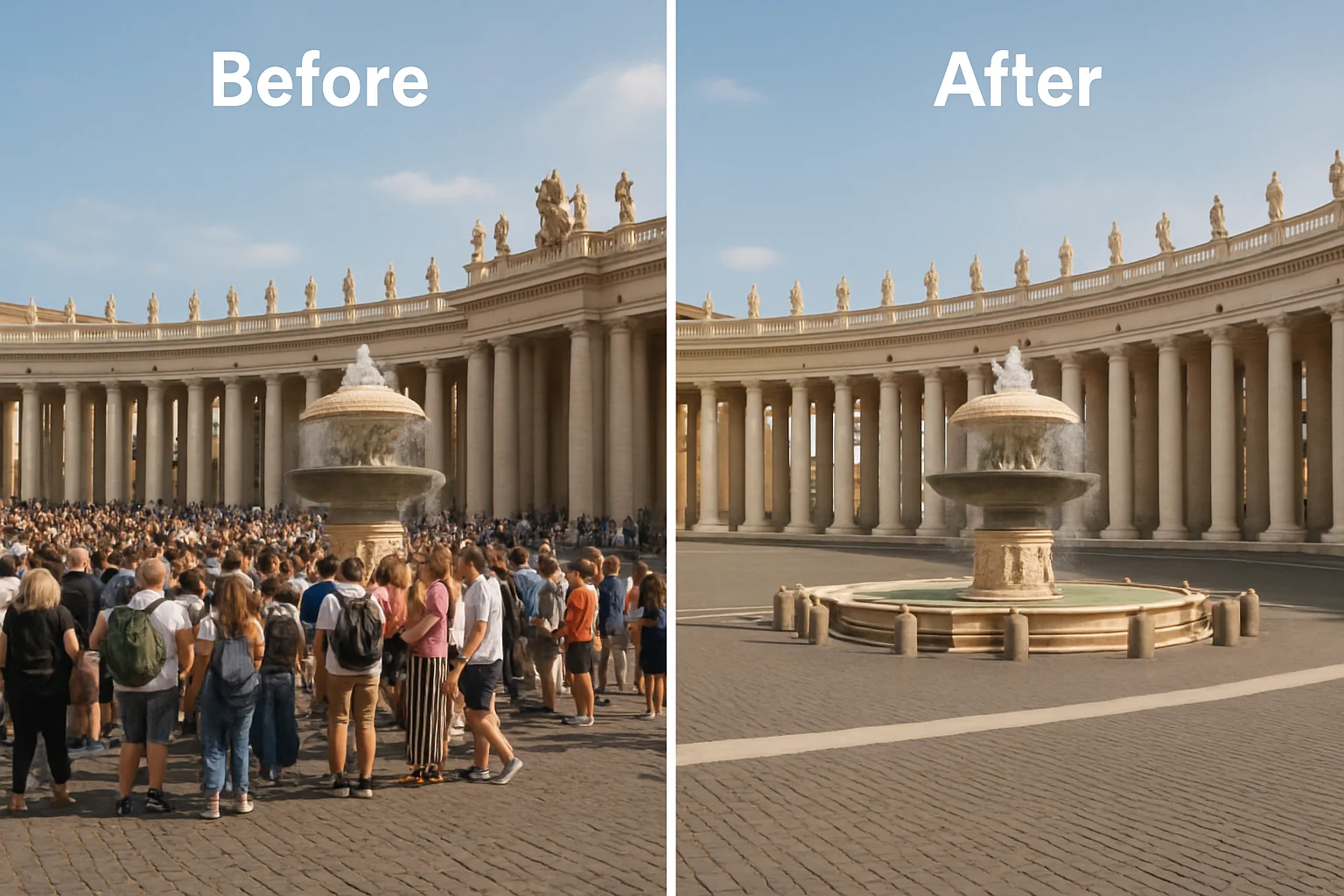
Compare the original and upscaled result to see sharper edges, clearer textures, and improved image detail.
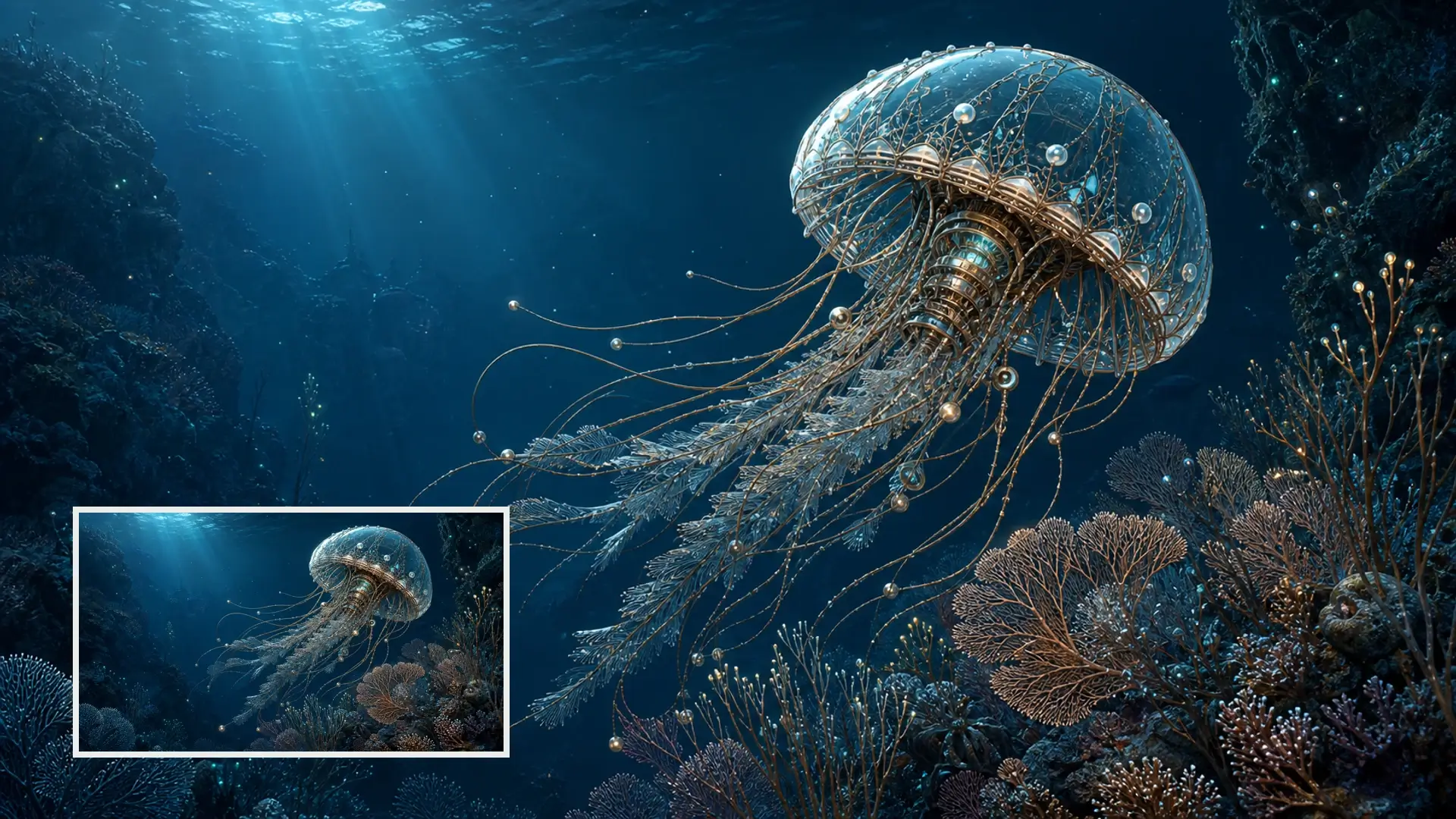
Refine lines, textures, and small generated details for a cleaner high-resolution result.
Create a larger image with clearer details, stronger texture definition, and more usable resolution.

Choose 2x, 4x, 6x, 8x, or 10x based on the size required for your design, display, or editing workflow.
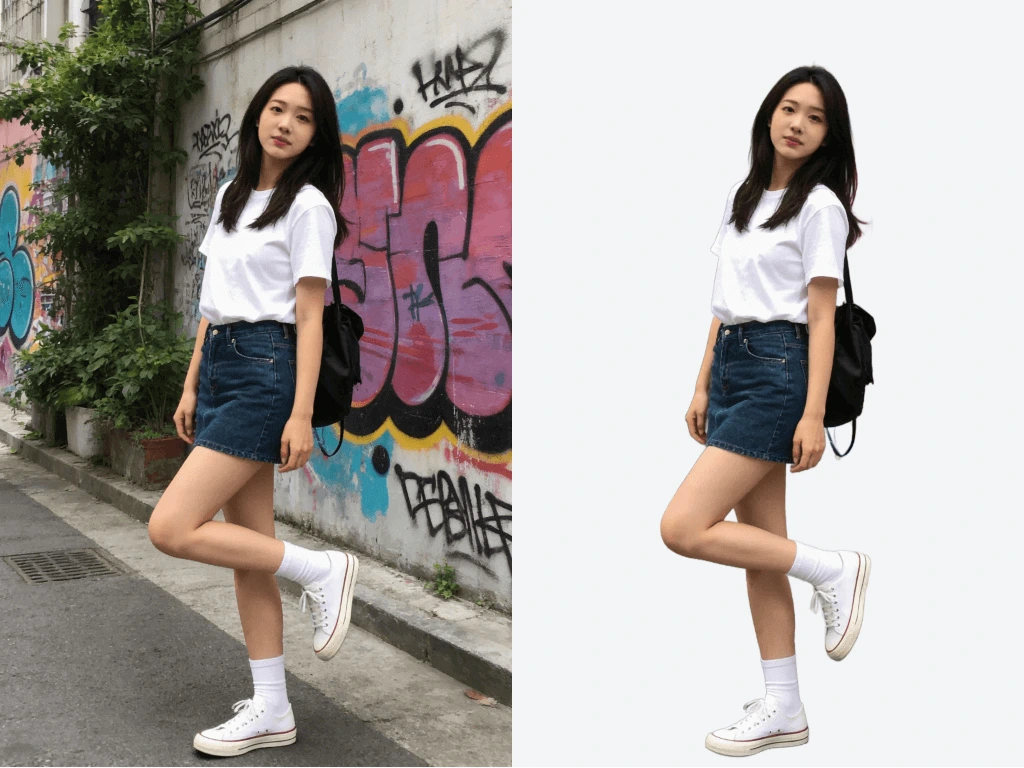
Improve edges, hair, fabric, surfaces, and other details that look soft in a small or compressed source image.
Use the same upscaling workflow for portraits, product photos, old images, illustrations, renders, and creative artwork.
Create a larger result while retaining the main subject, proportions, outlines, and important visual structure.
Use Lupa AI for personal photos, creative artwork, product images, and other visuals that need more resolution.

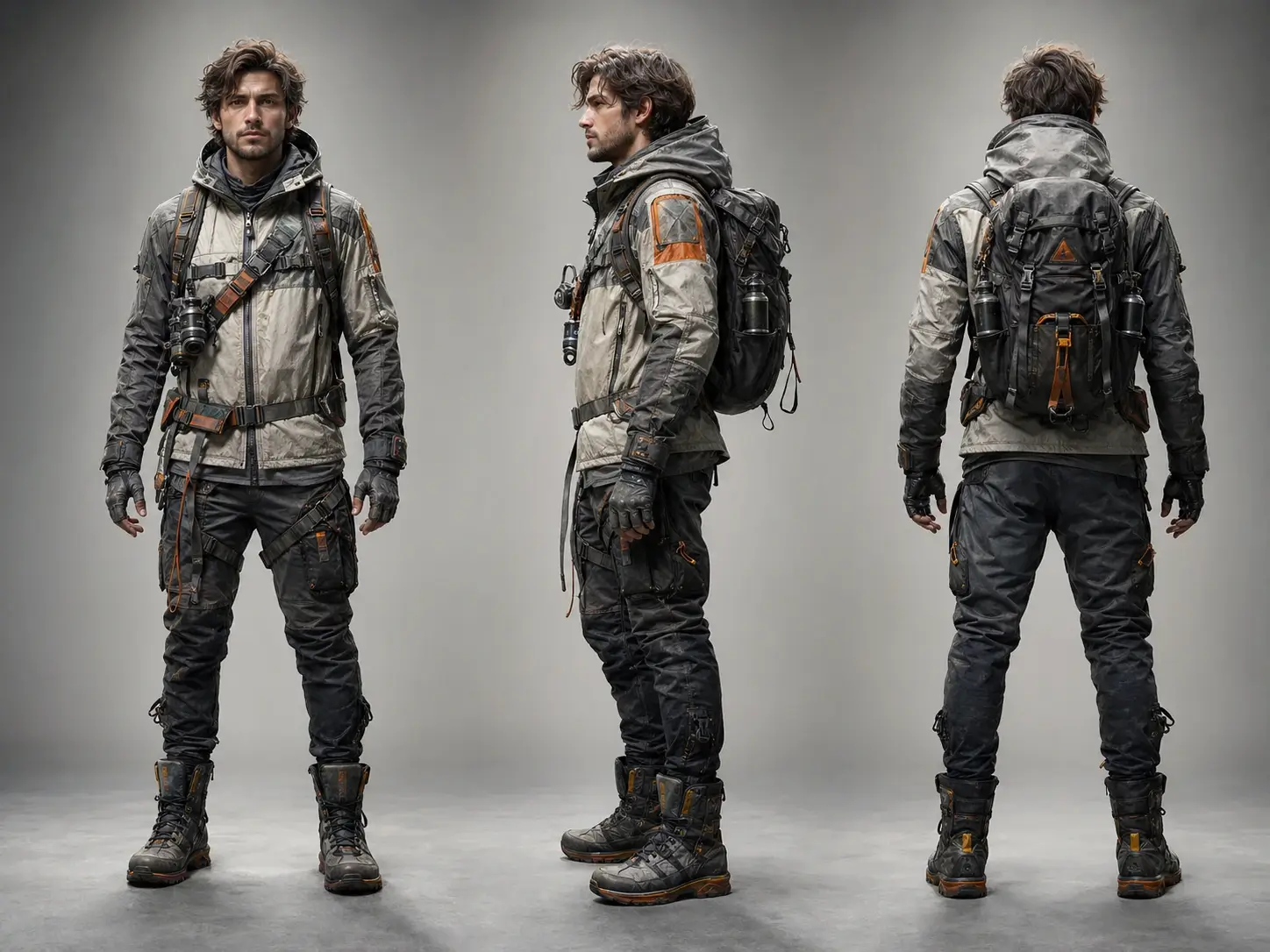
Improve facial details, hair, clothing, and background clarity for larger profile images and photo layouts.

Upscale generated characters, scenes, concepts, and poster images before publishing or further editing.
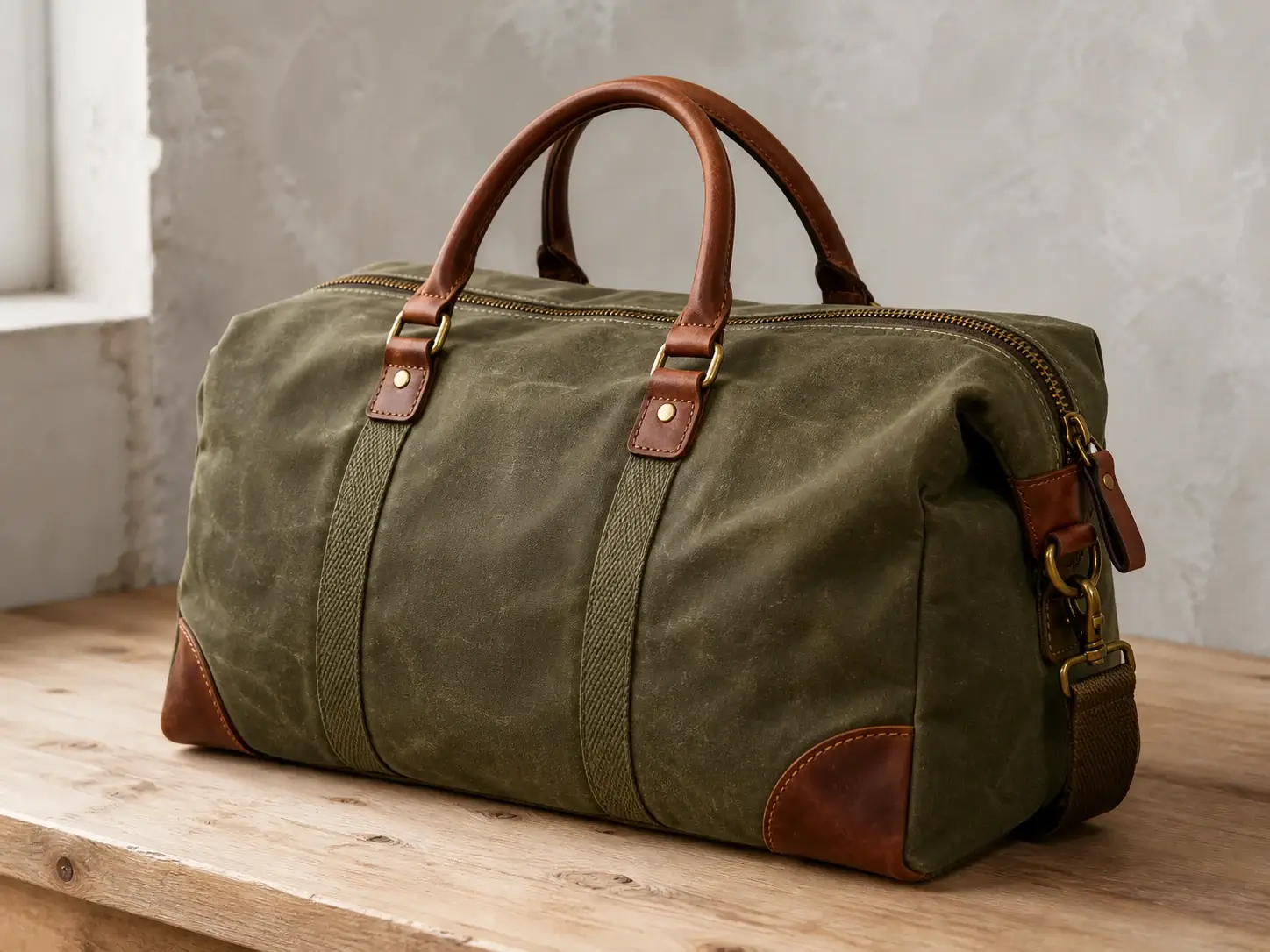
Create larger product images with clearer edges, materials, packaging, labels, and surface details.

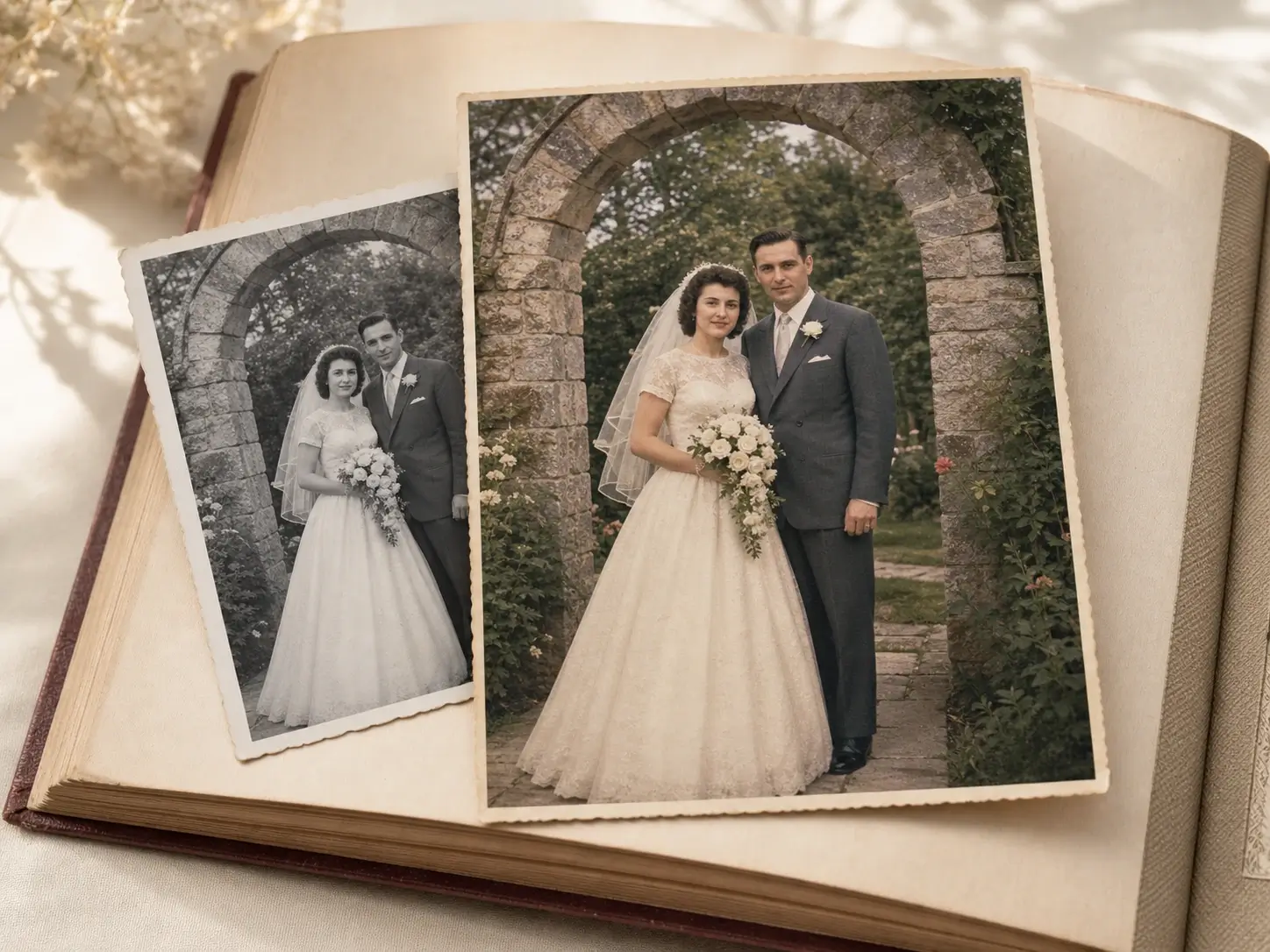
Enlarge scanned or low-resolution photos so faces, clothing, and background details appear clearer.
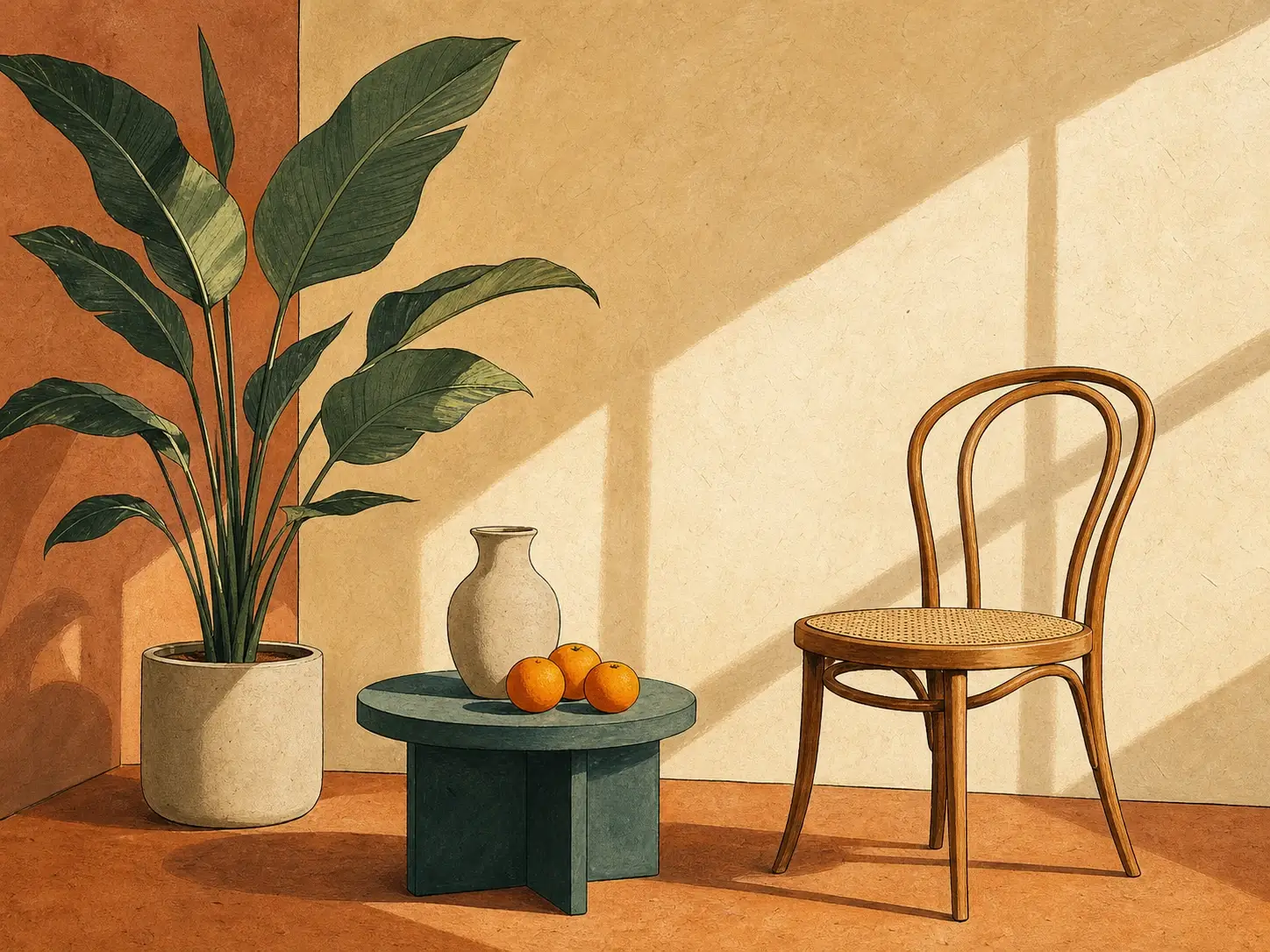
Prepare drawings, digital paintings, and graphic assets for larger placements and creative projects.
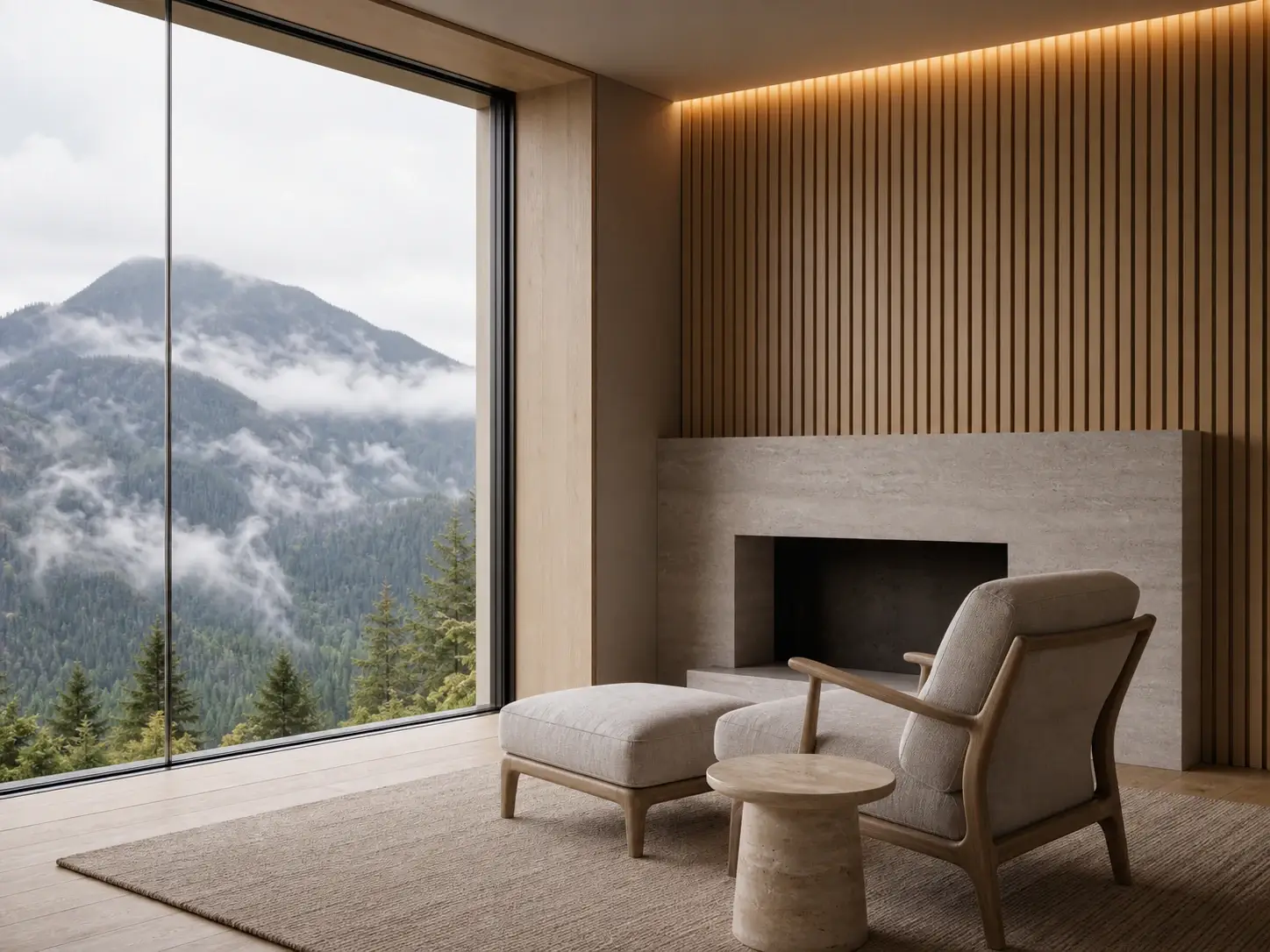
Increase the resolution of architectural renders and interior scenes while improving materials and fine geometry.
Upload an image, choose the output size, and download the upscaled result.
Choose a JPG, JPEG, PNG, or WebP image from your device. A clear source image usually produces a better result.
Select 2x, 4x, 6x, 8x, or 10x. Enable Face Enhance when a portrait needs additional facial detail.
Start the process, compare the result with the original, and download the larger image when it is ready.
Basic resizing stretches the existing pixel grid. AI upscaling analyzes the image while creating a larger result, helping edges, textures, and fine details appear clearer.
Because some details are reconstructed by AI, compare important faces, text, logos, and product information with the original before final use.
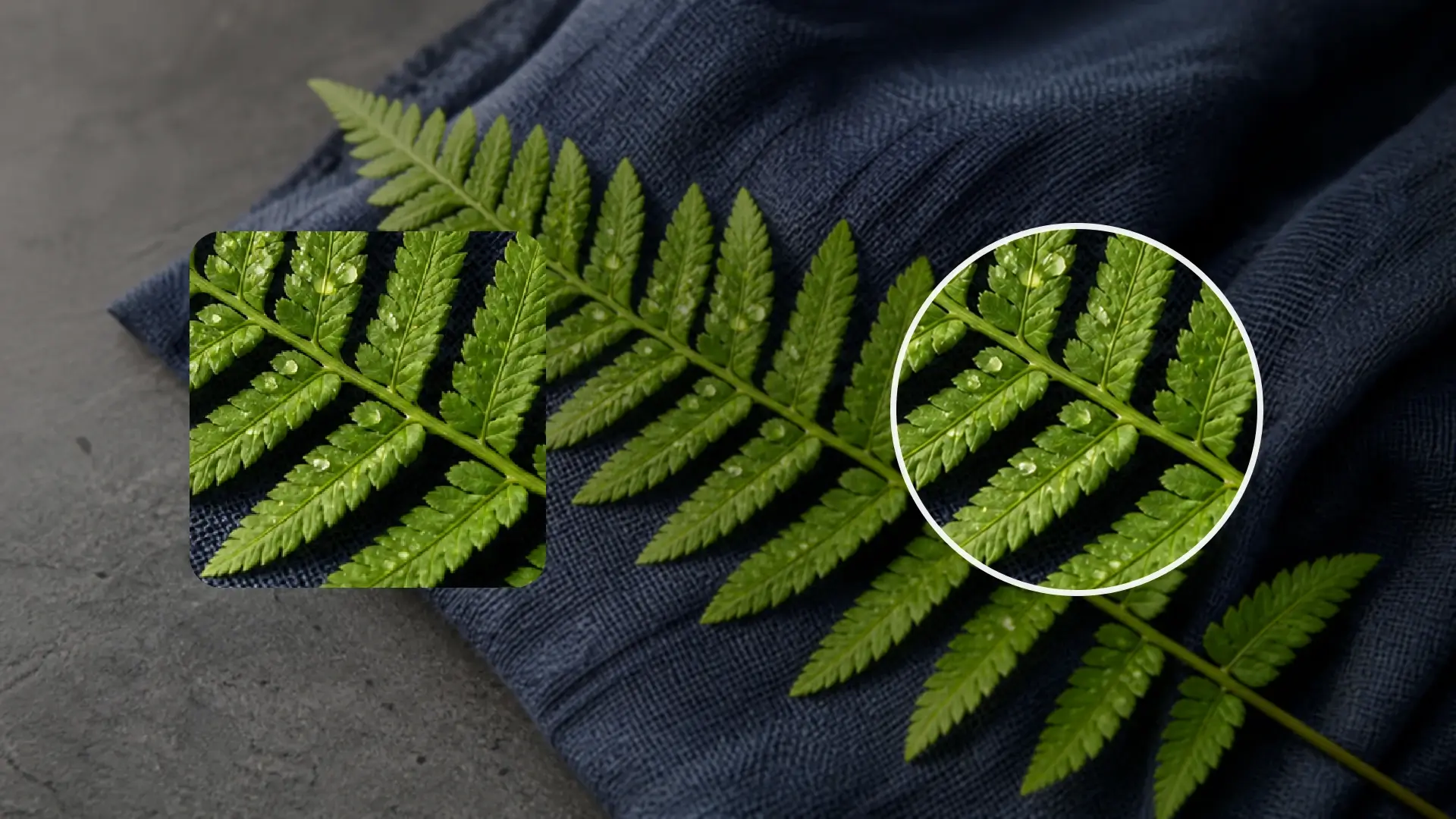
Answers about Lupa AI, upscale sizes, Face Enhance, supported formats, and online image upscaling.
Lupa AI is an AI image upscaling and enhancement tool. It can enlarge images, improve resolution, and create clearer details in photos, artwork, and other visual content.
Lupa AI Image Upscaler enlarges an image while improving visible detail, texture, and clarity. On PixMira, you can choose an upscale size, process the image, compare the result, and download it online.
Upload an image, choose an upscale size, enable Face Enhance when needed, and select Upscale Image. Review the result before downloading it.
The tool supports 2x, 4x, 6x, 8x, and 10x upscaling. Choose the smallest size that meets your output needs for a faster and more focused workflow.
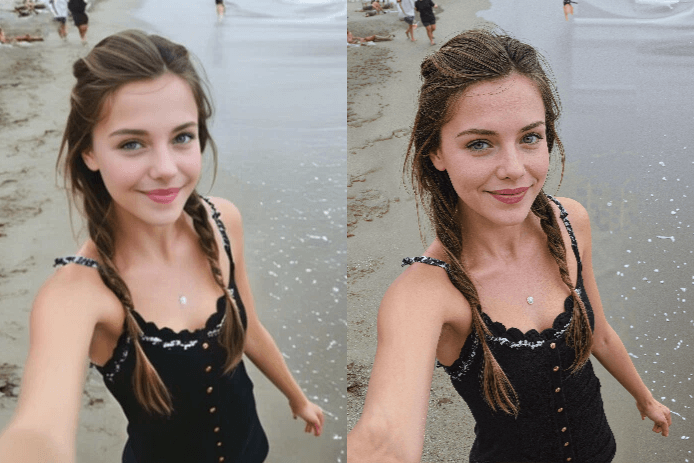
Face Enhance gives additional attention to facial details. It is useful for portraits and headshots, but you can turn it off for non-portrait images or unwanted face changes.
Yes. You can upscale AI artwork, character images, scenes, concepts, and poster visuals to create a larger and cleaner result.
Yes. It can enlarge portraits and scanned photos while making faces, clothing, edges, and background details easier to see.
The upload control accepts JPG, JPEG, PNG, and WebP images. For the best result, use the clearest original file available.
AI upscaling may reconstruct some fine details while creating a larger image. Compare important faces, text, logos, and product information with the original before final use.
Yes. Lupa AI runs directly in the PixMira web interface, so you can upload, upscale, review, and download an image without installing desktop software.
Try another PixMira AI Magic Tool when your image needs cleanup, enhancement, style changes, or a different creative direction.
Choose an upscale size and create a clearer, higher-resolution version of your photo, artwork, or other image.
Upscale an Image