Model Guides
GPT Image 2.5 Guide: Flare vs Sunburst, Prompts, Editing & Examples
A practical GPT Image 2.5 guide for image generation and editing, including Flare vs Sunburst, prompt structure, reference preservation, multi-turn editing, and production-focused examples.
Quick answer
GPT Image 2.5 in one minute
GPT Image 2.5 is OpenAI's updated image generation and editing family. Start with Flare for fast iteration, everyday generation, creator content, and higher-volume workflows. Use Sunburst when tighter editing control, reference consistency, or polished production work matters more than speed.
The most useful prompting rule is to describe not only what should change, but also what must remain unchanged. A strong edit brief usually follows this order: goal, preserve, change, composition, lighting and materials, text, then constraints.
To generate or edit directly, open the GPT Image 2.5 Generator.
What is GPT Image 2.5?
OpenAI introduced ChatGPT Images 2.5 on September 8, 2026, with sharper detail, more precise editing, stronger reference-photo fidelity, more consistent multi-turn edits, and faster generation. For developers, the release includes GPT Image 2.5 Flare and GPT Image 2.5 Sunburst. OpenAI's launch announcement positions Flare as the default choice for most applications and Sunburst as the precision-focused option for demanding creative workflows.
The important change is not only first-pass image quality. GPT Image 2.5 is particularly useful when the job has constraints: keep the same person, preserve product geometry, maintain a camera angle, change only the background, retain earlier edits, or create a family of assets without drifting away from the approved visual direction.
GPT Image 2.5 Flare vs Sunburst: which should you use?
For most users, Flare is the right starting point. OpenAI describes GPT Image 2.5 Flare as its fastest model for high-quality everyday image generation and lists it as the default. Sunburst is aimed at workflows where tighter control across edits and a more polished final result justify longer generation time.
Think of the choice as iteration speed versus precision. Flare is useful while you are exploring compositions, styles, and concepts. Sunburst becomes more valuable after the direction is already clear and small deviations can create real production problems.
| Question | GPT Image 2.5 Flare | GPT Image 2.5 Sunburst |
|---|---|---|
| Positioning | Fast, high-quality everyday generation and editing | Precision-focused creative and editing workflows |
| Best starting point | Most prompts and first-pass exploration | Final-stage work where control matters more than latency |
| Good fit | Creator content, social assets, product experiences, prototyping, high-volume generation | Campaign creative, polished product imagery, detailed edits, visually sensitive production work |
| Simple rule | Try Flare first | Use Sunburst when the brief needs tighter control |
A practical selection rule
If you are still deciding what the image should look like, use Flare. If you are protecting an approved person, product, layout, or brand treatment through detailed revisions, test Sunburst.
How to prompt GPT Image 2.5
A strong GPT Image 2.5 prompt reads like a compact creative brief rather than a pile of style keywords. For text-to-image work, define the subject, environment, composition, lighting, materials, camera or framing, exact text if needed, and the final visual intent. For image editing, add a preservation layer before describing the change.
- 1. Goal: State the job first, such as product campaign image, portrait restyle, poster, transparent asset, or background replacement.
- 2. Preserve: Name what must remain stable, including identity, product geometry, pose, camera angle, layout, label text, proportions, or previous edits.
- 3. Change: Describe the requested modification clearly and narrowly. One controlled change is easier to evaluate than six unrelated changes.
- 4. Composition: Specify crop, subject position, negative space, camera angle, visual hierarchy, and important element placement.
- 5. Lighting and materials: Use concrete visual language such as soft window light from camera left, brushed aluminum, glossy ceramic, or warm afternoon sun.
- 6. Text: Put required copy in quotation marks, describe where it belongs, and inspect generated text before publishing.
- 7. Constraints: Finish with fixed rules such as no extra objects, no logo changes, no new text, no facial changes, or transparent background.
The editing formula
Change X. Keep A, B, C, and D unchanged. Match the existing perspective and lighting. Add no new objects or text. This defines both the desired edit and the boundaries of the edit.
6 practical GPT Image 2.5 prompts
These GPT Image 2.5 prompts are written as working briefs rather than keyword lists. Copy them, replace the subject-specific details, and keep the preserve and constraint clauses when editing a reference image. You can also browse PixMira GPT prompts for more general prompt ideas.
Controlled product recolor
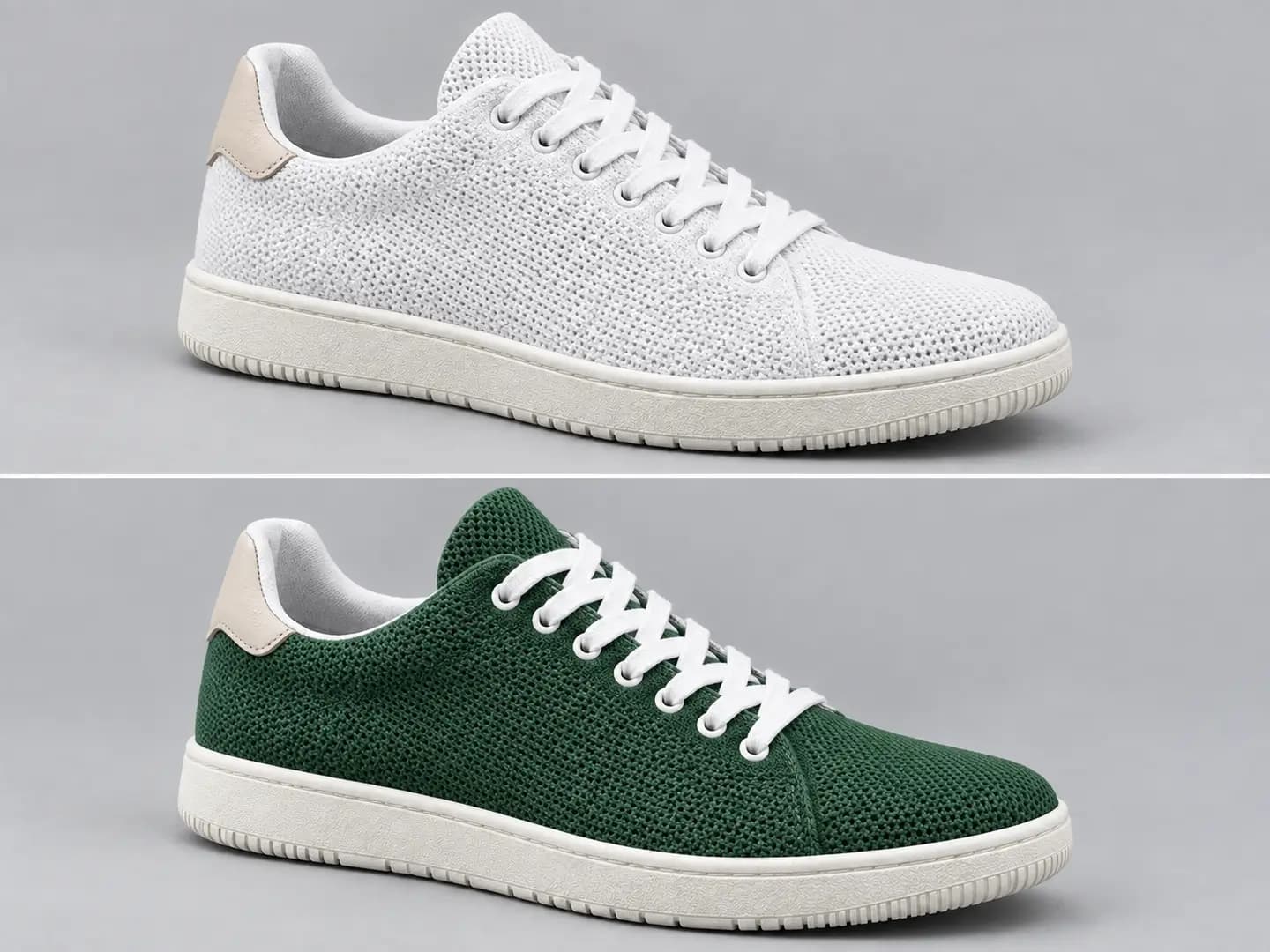
Use the uploaded product photo as the reference. Change only the bottle body from cobalt blue to deep forest green. Keep the bottle shape, cap, label design, exact label text, camera angle, crop, reflections, shadow, surface, and background unchanged. Match the existing studio lighting and material response. Do not add objects or alter the packaging proportions.
Why it works: The requested change is narrow, while the preserve list protects the information that makes the product recognizable.
Readable event poster
Create a vertical event poster for an independent design conference. Use a clean editorial layout with generous margins, a warm ivory background, black typography, and one saturated orange geometric accent. The main headline must read 'DESIGN SYSTEMS 2026'. Add the smaller line 'Singapore, 18 October'. Keep the hierarchy simple and legible. No extra copy, logos, mockup devices, or decorative text.
Why it works: Exact copy, hierarchy, layout direction, and exclusions reduce the amount of visual information the model has to invent.
Reference portrait restyle
Use the uploaded portrait as the identity reference. Preserve the person's facial structure, hairstyle, expression, age, skin tone, and head position. Restyle the image as a cinematic magazine portrait with a charcoal jacket, dark neutral background, soft key light from camera left, subtle rim light, realistic skin texture, and an 85mm portrait-photography feel. Do not change facial features or add accessories.
Why it works: The prompt separates identity from styling, which makes it easier to preserve the person while changing the art direction.
Premium product campaign
Create a premium campaign image for a minimalist stainless-steel watch. Place the watch on a dark slate pedestal with a soft charcoal-to-black background. Use controlled side lighting that reveals brushed metal texture without harsh hotspots. Frame the product slightly off-center with negative space on the upper left for future copy. Photorealistic product photography, clean reflections, realistic contact shadow, no text, no hands, no extra props.
Why it works: The brief defines material behavior, lighting, crop, negative space, and exclusions, which are the details that determine the commercial finish.
Transparent 3D asset
Create a single polished chrome star icon as a dimensional 3D object. Front three-quarter view, smooth rounded edges, realistic studio reflections, high material clarity, centered composition. Output the object isolated on a transparent background with no floor, no shadow outside the object, no text, no border, and no additional elements.
Why it works: Transparency is more reliable when isolation and supporting surfaces are defined explicitly.
Multi-turn campaign revision
Keep every approved element from the previous version unchanged, including the model, pose, clothing, product, crop, headline position, background color, and lighting direction. Make one revision only: reduce the size of the orange headline by about 15% and move it slightly upward to create more space above the product. Add no new text or graphics.
Why it works: For later turns, restate approved elements and ask for one measurable revision instead of reopening the whole design.
Reference image editing: tell GPT Image 2.5 what not to change
Reference editing is where GPT Image 2.5 becomes more useful than a simple text-to-image generator. The model can use an existing person, product, composition, sketch, or visual direction as the starting point instead of rebuilding the scene from scratch.
Separate three layers in the prompt: locked details, editable details, and finishing rules. Locked details protect identity and structure. Editable details define the requested change. Finishing rules keep lighting, perspective, texture, and visual style coherent after the edit.
- Lock identity explicitly. For people, name face, age, expression, hairstyle, pose, and skin tone when those details matter. For products, name geometry, label, logo, proportions, material, and camera angle.
- Make the edit measurable. Change the wall to muted sage, move the headline upward, remove the chair, or replace the jacket with a navy blazer. Clear edits are easier to review than "make it better."
- Preserve perspective and light. If only one object changes, ask the new version to match the existing camera position, light direction, shadow softness, reflections, and depth of field.
- Use one revision per turn when precision matters. Controlled edits are easier to evaluate than a single instruction that changes wardrobe, background, typography, crop, lighting, and product placement at once.
How to keep GPT Image 2.5 consistent across multiple edits
OpenAI specifically highlights improved multi-turn editing consistency in Images 2.5. You should still treat each approved version like a creative checkpoint. Once an image is close, stop rewriting the whole brief. Describe the next change and restate the details that are now locked.
A useful production workflow is to establish the composition first, approve identity and product details next, refine lighting and materials after that, then make small layout or copy adjustments. This reduces the chance that a late-stage correction accidentally changes an earlier decision.
Do not restart the prompt on every turn
If the current version is already 90% correct, a full rewrite gives the model permission to reinterpret decisions that were already approved. Ask for the remaining 10% change and explicitly preserve the rest.
GPT Image 2.5 vs GPT Image 2
GPT Image 2.5 is best understood as a workflow upgrade rather than a reason to discard every GPT Image 2 prompt. The underlying prompting fundamentals remain useful, but 2.5 is designed to improve the parts that matter during real editing work: reference fidelity, targeted changes, consistency across edits, natural lighting and textures, and generation speed.
OpenAI says GPT Image 2.5 Flare can deliver higher-quality images than GPT Image 2 at 50% lower latency for the API use cases it targets. Sunburst is positioned separately for workflows where tighter control is worth longer generation time. That means the upgrade path depends on your task, not only on a version number.
| Area | GPT Image 2 | GPT Image 2.5 |
|---|---|---|
| Model choice | Single GPT Image 2 family positioning | Flare for fast default workflows, Sunburst for precision-focused workflows |
| Reference fidelity | Reference-aware generation and editing | Improved preservation of subjects and reference details |
| Targeted editing | Supports image editing | More reliable precise edits and better control over what should remain unchanged |
| Multi-turn workflow | Supports iterative editing | Improved consistency across successive edits |
| Visual finish | High-quality generation | More natural lighting, richer textures, and sharper detail according to OpenAI |
Common GPT Image 2.5 prompting mistakes
The fastest way to improve GPT Image 2.5 prompts is often to remove ambiguity rather than add more adjectives. Weak briefs usually leave important visual decisions unspecified or ask for too many unrelated changes at once.
- Using vague edit language. "Make it more premium" is subjective. Define premium through materials, lighting, palette, typography, spacing, and composition.
- Forgetting preserve clauses. If identity, label text, product geometry, pose, framing, or earlier edits matter, say so.
- Changing everything in one turn. Large bundled edits are harder to evaluate and more likely to create collateral changes. Split precision work into smaller revisions.
- Writing style soup. Combining cinematic, minimalist, maximalist, retro, futuristic, editorial, documentary, and luxury in one sentence does not create a clear art direction.
- Assuming transparency. If you need an isolated asset, explicitly request a transparent background and define whether shadows or supporting surfaces should exist.
- Publishing generated text without checking it. GPT Image 2.5 improves complex layouts and text handling, but generated copy should still be visually reviewed before production use.
FAQ
GPT Image 2.5 FAQ
01What is GPT Image 2.5?+
02What is the difference between GPT Image 2.5 Flare and Sunburst?+
03Should I use Flare or Sunburst first?+
04Can GPT Image 2.5 edit an existing image?+
05How do I write a good GPT Image 2.5 prompt?+
06Does GPT Image 2.5 support transparent backgrounds?+
07Can GPT Image 2.5 keep a person or product consistent across edits?+
08Is GPT Image 2.5 better than GPT Image 2?+
09What quality settings does GPT Image 2.5 support?+
10Where can I try GPT Image 2.5 online?+
Ready to create
Create with GPT Image 2.5 on PixMira
Use Flare for fast iteration or Sunburst for tighter creative control, then apply the prompt structures in this guide to generate and edit with more precision.
Open GPT Image 2.5 GeneratorFlare and Sunburst available in one workspace
Keep reading